Every ticket shows the loss if the stop hits and what each limit would have left after it.
Fit to limits sets the largest volume that fits; your own risk plan usually calls for less.
One net position per symbol: no hedging, and Reverse flips a trade in one reviewed order.
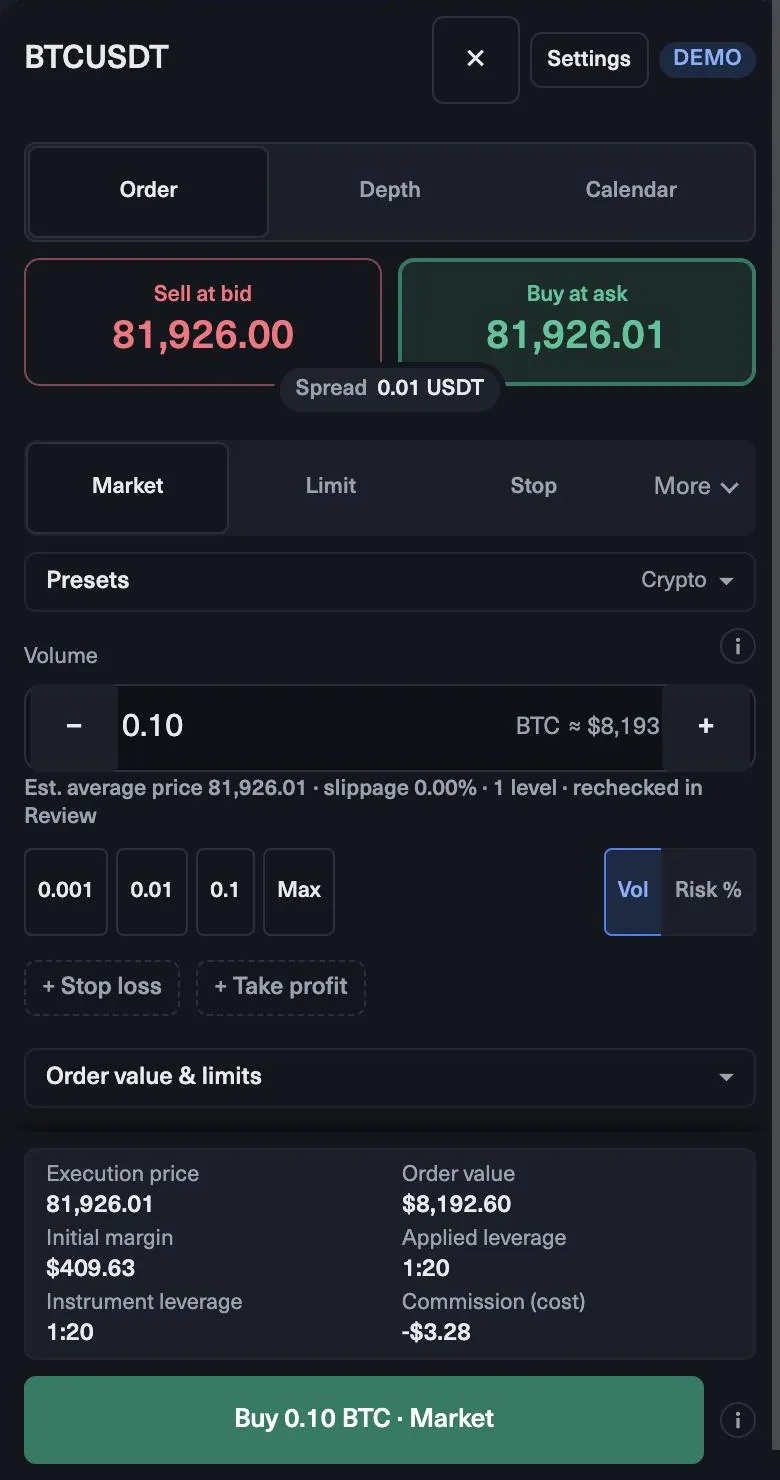
The order ticket, field by field
- Buy or Sell. The direction of the trade.
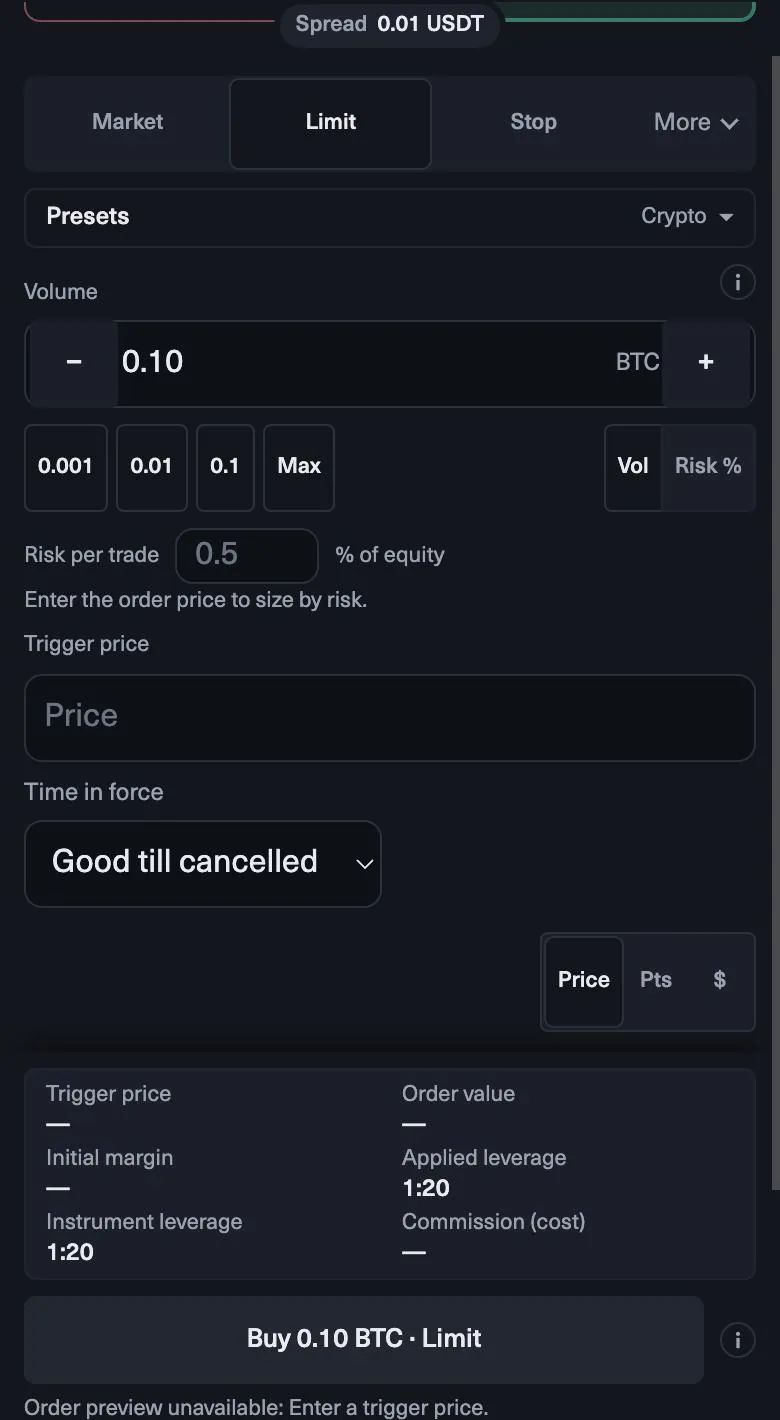
- Order type. Market, or a pending limit, stop or stop-limit order.
- Volume in lots. Drag or set it; the figures below update as you move.
- Stop loss in pips from the entry, and a take profit.
- If the stop loss hits. The dollar loss at your stop, before gaps and slippage.
- Daily loss limit and Overall loss limit, each with the dollars that would be left if the stop hits.
- Fit to limits and a status that tells you whether the order is within your limits.
Step by step: a market order
- Pick the symbol in the watchlist, for example EURUSD.
- Choose Buy or Sell, and Market as the order type.
- Set the stop loss where your idea is wrong, say 25 pips.
- Set the volume from your risk. On a $10,000 account at 0.5% risk you can lose $50. At $10 per pip per lot, 25 pips cost $250 per lot, so the volume is $50 ÷ $250 = 0.20 lots.
- Check the line under the volume: it should show a loss of about $50 if the stop hits, and the dollars left on both limits.
- Add a take profit, for example 40 pips, then send the order.
The ticket figures are estimates before gaps and slippage. The server checks every order, and your plan’s rules still apply.
Fit to limits and your own plan
Fit to limits sets, in one tap, the largest volume that keeps your stop inside a safety margin below your smallest remaining limit. It is useful when the volume you typed runs past your daily room: press it and the ticket brings the size back.
Treat it as a ceiling, not a size. On most days the largest volume that fits is far more than a sensible risk per trade. Size from your own risk first, as in the steps above, and use Fit to limits as a check that the order fits.
Pending orders
A limit order enters at a better price than now, a stop order enters once price moves through a level, and a stop-limit combines the two. You can attach a stop loss and take profit to any pending order, and they apply the moment it fills. That means a breakout order placed before the news is protected from its first tick.
Managing the open trade
- Break-even. Move the stop to your entry in one tap, or let it move by itself.
- Partial close. Take part of the position off, or set a partial take profit, and keep the rest running.
- Trailing stop. Trail by a fixed distance, a percentage or ATR. It runs on the server and keeps working when you close the browser.
- Reverse. Turn a long into a short at the same size, in one order you review first.
The terminal keeps one net position per symbol, so hedging is not possible. After the trade, the Report shows MAE and MFE: how far it went against you and for you before you closed it.
Quiz
Check yourself
0 / 4
Lesson complete
Nice work. … of 5 lessons in MyFundedCapital Terminal done.
MyFundedCapital School
MyFundedCapital Terminal checklist
Rules as of 17 Oct 2026. Tick each line before your next session.
1. How do you log in to MyFundedCapital Terminal for the first time?
- Two sign-ins: the Dashboard uses your order email; the terminal uses the login shown for each account.
- Nothing to install: it runs in Chrome, Edge, Safari or Firefox on your computer or your phone.
- Never share a password or a one-time code, not even with support.
2. How do you place an order with a stop loss and take profit?
- Every ticket shows the loss if the stop hits and what each limit would have left after it.
- Fit to limits sets the largest volume that fits; your own risk plan usually calls for less.
- One net position per symbol: no hedging, and Reverse flips a trade in one reviewed order.
3. How do you track your daily loss limit in the terminal?
- The header shows dollars left for the daily and the overall limit; the smaller one is your real room.
- Open losses count: the plan checks equity, not only closed trades.
- A personal daily limit below the plan’s pauses new trades for the rest of the day.
4. How do you use charts and timeframes in MyFundedCapital Terminal?
- Thirteen timeframes, from one minute to one month, on every symbol in the watchlist.
- Drawings are saved, so mark your levels once on the higher timeframe.
- Custom indicators are not supported; the built-in set covers the basics. Expert advisors run only by agreement, so write to support before you use one.
5. How do you request a payout in the MyFundedCapital Dashboard?
- Eligibility is a date plus conditions; the Dashboard shows both before you submit.
- Identity verification through Didit in the Dashboard must be done before your first payout.
- Processing averages 1:46h from request to approval, by bank transfer, e-wallet, crypto or local method.
myfundedcapital.com/learn/
Questions
Can I hold a buy and a sell on the same symbol?
No. The terminal keeps one net position per symbol. To switch sides, use Reverse, which you review before it is sent.
Does the trailing stop work when I close the browser?
Yes. It runs on the server, by a fixed distance, a percentage or ATR, and keeps working when the browser is closed.
Related lessons
Tools and rules
Rules shown here come from the help center and the live rulebook; your program terms apply.