Two sign-ins: the Dashboard uses your order email; the terminal uses the login shown for each account.
Nothing to install: it runs in Chrome, Edge, Safari or Firefox on your computer or your phone.
Never share a password or a one-time code, not even with support.
Before you start
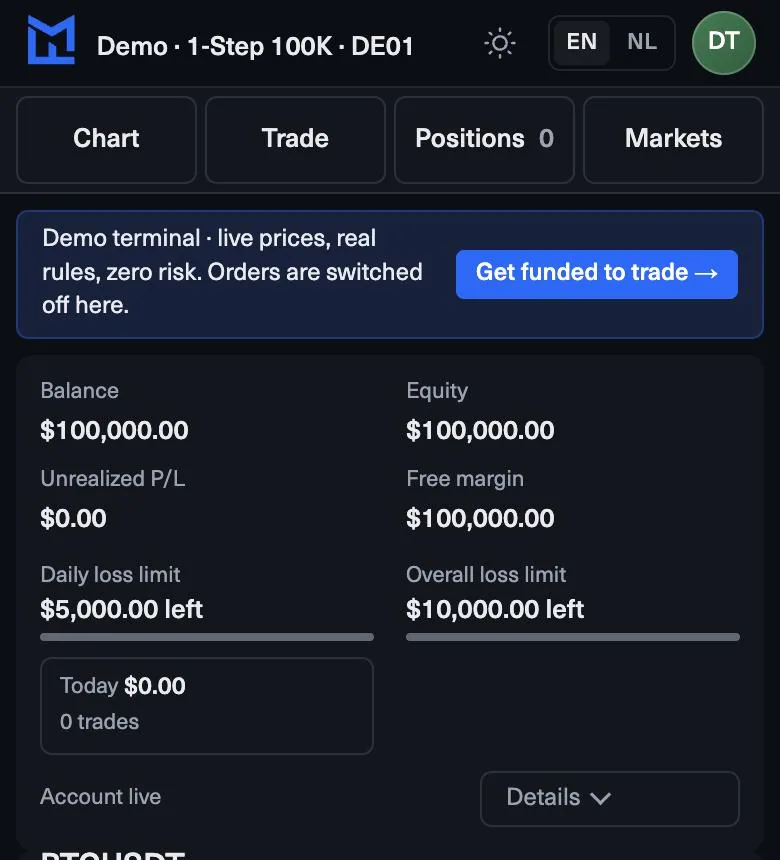
MyFundedCapital Terminal runs in your browser, so there is nothing to download. It works on a computer and on your phone, in a current version of Chrome, Edge, Safari or Firefox; on the phone it switches to Chart, Trade, Positions and Markets tabs. The interface is available in English and Dutch.
If you have not bought an account yet, you can try the free demo with live quotes first. It needs no sign-up, and it shows the same order ticket and chart you use once your account is open.
Step by step: your first sign-in
- Open the MyFundedCapital Dashboard sign-in page and enter the email address you used at checkout.
- Sign in with your password, or choose Use a one-time code and enter the code we email you. If you have forgotten your password, use Forgot password? on the same page.
- Find your challenge in the Dashboard. Each challenge shows its limits, its progress to the target and its payouts.
- Next to the challenge you see your terminal login, with a copy button, and an Open terminal button. Copy the login, then press Open terminal.
- Sign in to the terminal with that login and your terminal password. The password is in the email sent when the account opened, or you set it with the setup link. You can change it inside the terminal.
If you have more than one account, each one has its own terminal login and password. Make sure you opened the one you mean to trade.
What you see on screen
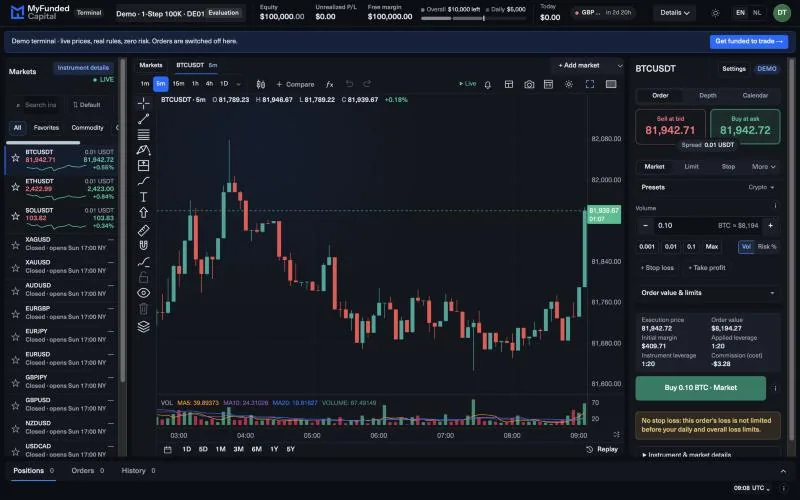
- The header shows your daily and overall loss limit with the dollars left, your progress to the target and the economic calendar.
- The watchlist lists the symbols you can trade with their live prices.
- The chart shows live candles with indicators and drawing tools that stay for your next session.
- The order ticket shows, before you send an order, what the stop would cost and what each limit would have left.
- The Report collects your account curve, a calendar, tags and MAE / MFE for every trade.
If something does not work
- Your Dashboard password fails in the terminal. They are different sign-ins. Use the account login shown in the Dashboard and your terminal password. Check spaces and letter case.
- You paid but have no terminal password. Check your spam folder for the activation email, then sign in to the Dashboard and check the order status. Do not pay a second time; ask support to check the existing order.
- Access still fails. Send support the masked account reference, the exact error, the time and your time zone, and a screenshot with your credentials hidden.
Which account trades where
1-Step Challenge, 2-Step Challenge and Instant Funded accounts trade in MyFundedCapital Terminal. Prediction Markets has its own event-trading screen in the terminal and follows its own rules. For MFC Stocks, follow the platform instructions attached to your Stocks account. An older account keeps the provider link and credentials in its own instructions; do not assume it has moved.
Quiz
Check yourself
0 / 3
Lesson complete
Nice work. … of 5 lessons in MyFundedCapital Terminal done.
MyFundedCapital School
MyFundedCapital Terminal checklist
Rules as of 17 Oct 2026. Tick each line before your next session.
1. How do you log in to MyFundedCapital Terminal for the first time?
- Two sign-ins: the Dashboard uses your order email; the terminal uses the login shown for each account.
- Nothing to install: it runs in Chrome, Edge, Safari or Firefox on your computer or your phone.
- Never share a password or a one-time code, not even with support.
2. How do you place an order with a stop loss and take profit?
- Every ticket shows the loss if the stop hits and what each limit would have left after it.
- Fit to limits sets the largest volume that fits; your own risk plan usually calls for less.
- One net position per symbol: no hedging, and Reverse flips a trade in one reviewed order.
3. How do you track your daily loss limit in the terminal?
- The header shows dollars left for the daily and the overall limit; the smaller one is your real room.
- Open losses count: the plan checks equity, not only closed trades.
- A personal daily limit below the plan’s pauses new trades for the rest of the day.
4. How do you use charts and timeframes in MyFundedCapital Terminal?
- Thirteen timeframes, from one minute to one month, on every symbol in the watchlist.
- Drawings are saved, so mark your levels once on the higher timeframe.
- Custom indicators are not supported; the built-in set covers the basics. Expert advisors run only by agreement, so write to support before you use one.
5. How do you request a payout in the MyFundedCapital Dashboard?
- Eligibility is a date plus conditions; the Dashboard shows both before you submit.
- Identity verification through Didit in the Dashboard must be done before your first payout.
- Processing averages 1:46h from request to approval, by bank transfer, e-wallet, crypto or local method.
myfundedcapital.com/learn/
Questions
Can I trade my challenge on MT5?
No. New challenges run in MyFundedCapital Terminal, which you open from your challenge in the MyFundedCapital Dashboard.
Can I try the terminal before I buy?
Yes. The free demo with live quotes opens without sign-up, so you can try the ticket and the chart first.
Related lessons
Tools and rules
Rules shown here come from the help center and the live rulebook; your program terms apply.