You’ve got your strategy ready, your rules are clear, and your charts are in your head. Then the setup slows you down. That’s common with metatrader 4 download pc, especially when traders grab the wrong installer, pick the wrong server, or rush through login.
A clean MT4 install on Windows is simple when you do it the way active traders do it. The goal isn’t just getting the platform open. It’s getting a stable terminal you can trust when spreads move fast, orders need to go in cleanly, and platform mistakes can cost you.
Your Essential Guide to MetaTrader 4 on PC
You sit down to trade a London open, launch MT4, and the terminal connects to the wrong server or fails to show the broker feed your prop account uses. That is not a platform problem. It is usually an install problem.
MT4 still earns its place on a Windows PC because it is light, familiar, and built for fast chart work, order entry, and EA support. Traders keep using it because it does the job without loading the screen with features they will never touch. For discretionary trading, that matters. For challenge accounts and prop evaluations, it matters even more because consistency beats novelty.
The part new traders miss is simple. The right MT4 download is usually the broker-specific one, not the generic installer. A broker-branded terminal points you to the correct servers, uses the right data environment, and reduces the login and connection issues that waste time before a session. If you are trading under prop firm rules, including setups tied to firms like MyFundedCapital, that alignment is part of basic risk control.
MT4 also stays relevant because the platform has been around long enough for traders, educators, and developers to build real working routines around it. Templates, custom indicators, scripts, trade copiers, and Expert Advisors are easy to find. The trade-off is that old software rewards clean setup. A careless install can leave you with duplicate terminals, missing server options, bad file locations, or the wrong account type selected at login.
If you are still comparing terminals before you commit, review the best FX trading platform options and match the platform to your execution style, not just to what is popular.
MT4 feels straightforward after it is configured properly. Most of the friction comes from using the wrong installer or logging into the wrong trading server.
Preparing for Your MetaTrader 4 Download
A few minutes of prep can save you from the usual mess. Traders often rush to download first and think later. On MT4, that’s backward.
Check your PC before you install
MT4 is lightweight. The official MetaQuotes information lists minimum requirements as Windows 98SE2 or higher, a 1.7 GHz processor, 256 MB RAM, and 50 MB of storage, as shown on the MetaTrader 4 official platform page.
That tells you one thing clearly. MT4 itself isn’t demanding.
Real trading conditions are different from minimum specs, though. If you run several charts, custom indicators, browser tabs, Discord, a journal, and maybe an EA, you want breathing room. A weak machine can still launch MT4, but it may hesitate when markets get active or when multiple charts refresh at once.
Use this quick pre-flight list:
- Operating system Windows is the clean path for MT4. If you're on a Windows laptop or desktop, you're in the best-case setup.
- Free storage Leave more space than the minimum so logs, templates, profiles, and downloaded history data don’t crowd the install.
- Stable internet A platform install can succeed on poor internet, but live quotes and login reliability won’t.
- Admin access If you don’t have permission to install software on the PC, fix that first.
Gather the three things traders forget
Before you click download, have these ready:
- Broker or prop account credentials Login, password, and the exact server name.
- Your install plan Decide whether this will be your only MT4 instance or one of several.
- A clean folder structure If you use different brokers or test EAs separately, keep installations isolated.
That last point matters more than beginners think. If you install every terminal into the default path and start dropping indicators into random folders, troubleshooting later becomes annoying fast.
Broker installer versus generic installer
This is the mistake that burns the most time. Many traders search metatrader 4 download pc, land on the generic MetaQuotes route, and assume all MT4 files are effectively the same. They aren’t, at least not in practice.
The broker-specific installer usually comes with the right server list and fewer login headaches. That makes first launch smoother, especially if you already know where you’ll trade.
Practical rule: If you already have an account with a broker or trading provider, download MT4 from that provider’s portal first. Use the generic installer only when you’re testing broadly and haven’t chosen where you’ll connect.
If you’re still deciding whether to stay on MT4 or move to the newer version, compare the workflow differences in this breakdown of MetaTrader 4 vs MetaTrader 5.
The Definitive MT4 Installation and Login Process
This is the part where traders either make it easy on themselves or create avoidable problems. The clean route is simple: get the right installer, install it with proper permissions, log in to the right server, and verify the connection before you start changing anything.
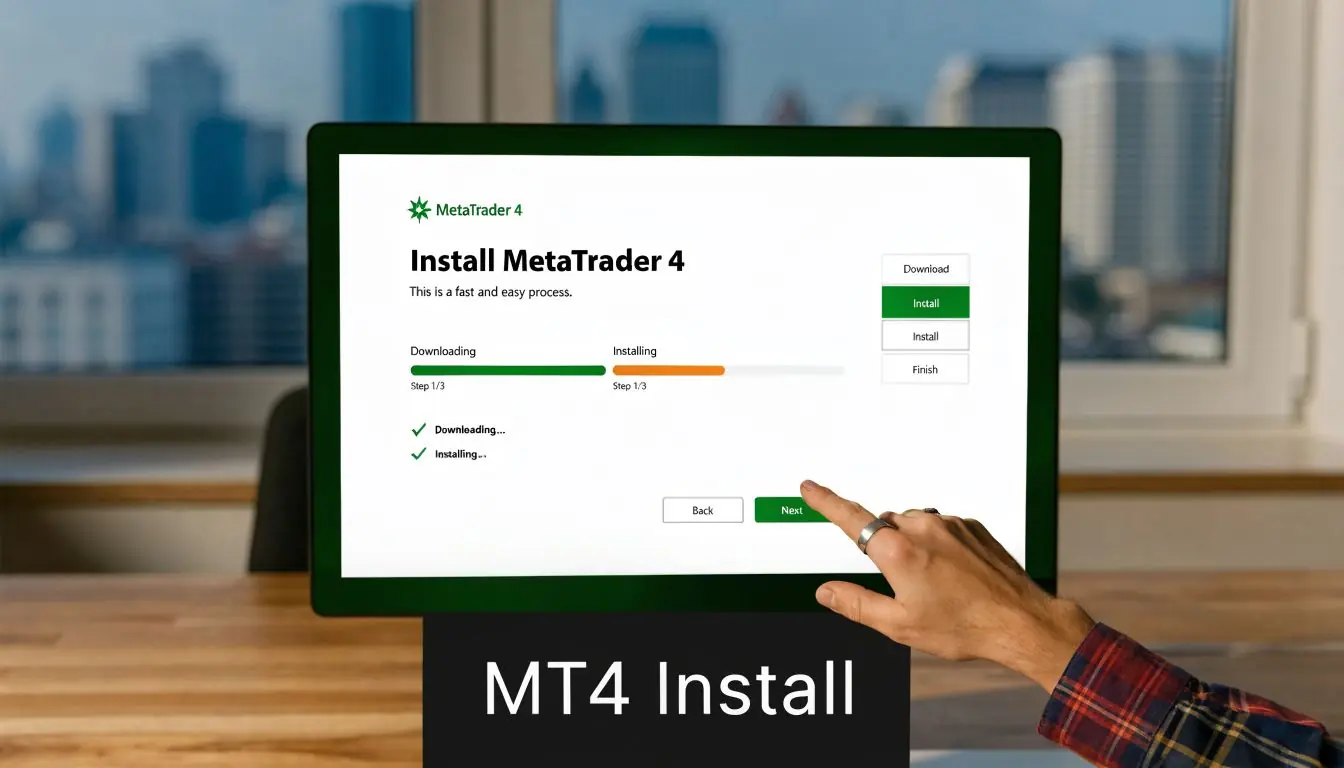
Achieving a 98% successful installation in under 10 minutes hinges on using the broker-specific installer, while generic downloads from the main MetaQuotes site are responsible for 75% of initial setup failures due to server mismatches, based on the installation walkthrough referenced here.
Start with the correct download file
Go to your broker portal or platform download area. Look for the Windows MT4 installer, usually an .exe file.
Don’t overcomplicate this. If your broker offers its own MT4 download, use that one first.
A simple way to understand it:
| Download option | What usually happens |
|---|---|
| Broker-specific MT4 installer | Server list is usually ready and login tends to be smoother |
| Generic MT4 installer | You may need extra server searching and can run into account mismatch issues |
That single choice solves a lot of first-day problems.
Run the installer properly
Once the file downloads, right-click it and choose Run as administrator. Traders skip this because the installer often still opens without it. Later, they find folder permission issues, missing files, or trouble saving changes.
Use a custom installation path if you plan to run more than one terminal. A path like C:MT4_BrokerName is cleaner than leaving everything in the default folder.
Good reasons to use a custom path:
- Separation One install for manual trading, another for EA testing.
- Clarity You always know which terminal belongs to which broker or strategy.
- Safer changes You won’t mix templates, profiles, or expert files across accounts by accident.
During install, MT4 may try to open extra related pages or services. You don’t need to chase those. Finish the platform install first.
Use folder names that tell the truth. “MT4_Main,” “MT4_Test,” and “MT4_EA” are better than “New Folder” and “MT4 Final Final.”
Log in the right way on first launch
When MT4 opens for the first time, don’t start rearranging charts yet. Connect the account first.
You’ll usually see a login prompt. If not, go to the file menu and open the login window manually. Enter:
- Login number
- Password
- Correct server
The server matters as much as the credentials. A right login with the wrong server can still fail.
If you’re dealing with a demo, challenge, or live environment, slow down and confirm the exact server label from your credential email or dashboard. Traders often type the login correctly and then choose a similar-looking server from the list. That’s how “Invalid Account” shows up.
Confirm the terminal is actually connected
A platform that opens isn’t the same as a platform that’s ready. Check that prices are updating in Market Watch and that the connection indicators look healthy.
The Journal tab is worth reading during the first few minutes. It tells you whether the terminal connected cleanly, failed to authorize, or is still trying to sync.
Use this first-launch checklist:
- Quotes are moving If symbols are frozen, you’re not fully connected.
- Journal shows connection activity Look for clear connection and login messages.
- The right account is loaded Confirm account number and balance or demo balance.
- The expected server appears Don’t assume it’s right just because the platform opened.
A clean setup for challenge conditions
In a fast evaluation environment, simple beats fancy. Keep the first version of your terminal lean.
A practical starter layout looks like this:
- Four core charts open
- Market Watch visible
- Terminal window docked at the bottom
- Journal and Experts tabs easy to access
- One saved profile for your standard trading session
That’s enough to start cleanly and enough structure to catch issues early.
If MT4 connects, updates quotes, and logs your account correctly, stop tweaking for a minute. Save that state as your baseline install.
Essential Configuration for Peak Trading Performance
A default MT4 terminal is usable. A configured terminal is faster, cleaner, and safer under pressure. Most traders lose time not because MT4 lacks tools, but because their workspace becomes cluttered, inconsistent, or hard to monitor during active sessions.
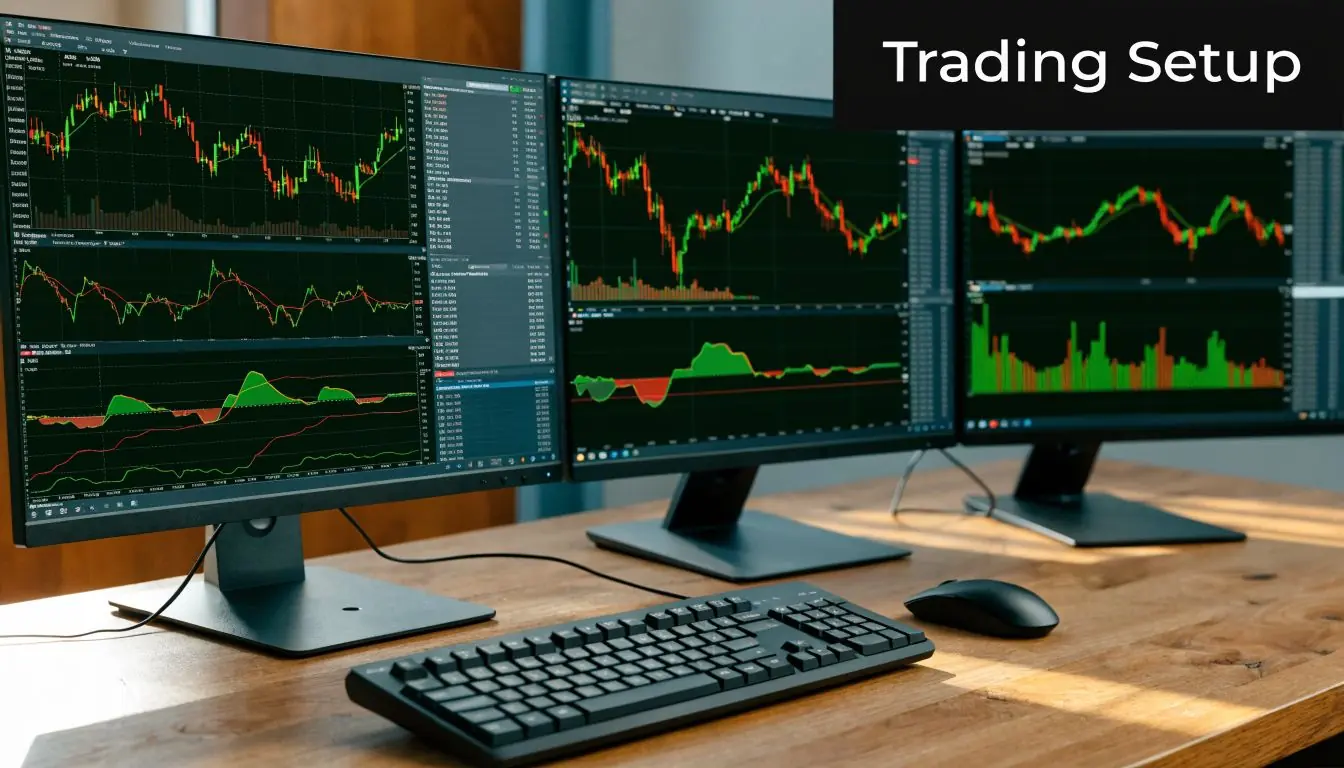
Build a workspace you can repeat every day
Start with the charts you trade. Don’t open every symbol you might look at someday.
Set up your main pairs or instruments, then save the arrangement as a profile. In MT4, profiles help you switch between market groups or strategy layouts without rebuilding the screen each time.
Templates do a different job. A template stores the visual setup of one chart, including colors, indicators, and chart style. That means if you want every EUR/USD or GBP/USD chart to open with the same structure, save a clean template and apply it consistently.
A solid working routine looks like this:
- One profile for execution Only the charts and panels you need during live trading.
- One profile for analysis More room for marking levels and reviewing higher timeframes.
- One template per strategy Keep indicator stacks consistent so you don’t read one chart differently from the next.
Install indicators and EAs without making a mess
Custom indicators and Expert Advisors belong in the correct MT4 folders. Open the terminal’s data folder, then enter the MQL4 directory. From there, indicators go into the Indicators folder and EAs go into the Experts folder.
After you copy files, restart MT4 or refresh the Navigator panel. If you dump files into the wrong install path, they won’t show. That’s common when traders run multiple MT4 terminals and forget which one is active.
Use this simple file discipline:
- Keep original downloads in a separate backup folder
- Name installs clearly so you know which MQL4 folder you’re editing
- Test one new EA or indicator at a time
- Check the Experts and Journal tabs after attaching anything custom
That last step matters. If an EA loads badly, MT4 usually tells you. Traders often assume the robot “doesn’t work” when the platform is already showing the reason in plain text.
A clean terminal beats a clever terminal. If a tool doesn’t help you make a decision faster or manage risk better, remove it.
Tune MT4 for smoother performance
Performance problems aren’t always MT4’s fault. They often come from too many charts, too many indicators, or a PC that’s carrying unnecessary load in the background.
Practical tweaks that usually help:
- Reduce clutter Close symbols you’re not watching.
- Limit heavy visuals Some custom indicators recalculate constantly and slow chart movement.
- Keep one main terminal for execution Testing experimental tools in your live terminal is asking for noise.
- Watch your machine If the whole PC feels sluggish, it’s worth learning how to diagnose and fix a slow PC before blaming MT4.
You don’t need a flashy setup. You need a terminal that responds the same way every session.
Add visible risk controls to the chart
Traders enhance their professionalism. Don’t leave risk management as a vague idea in your head. Put reminders into the workspace.
For challenge-style rules with a 5% daily loss limit, visual cues help. You can mark your maximum daily pain threshold in notes, use simple line objects at key account-based reference areas, or keep a small on-screen checklist beside the terminal. The point isn’t decoration. It’s preventing one emotional trade from breaking your process.
A practical setup might include:
| Risk control | Why it helps |
|---|---|
| Pinned daily loss note | Keeps your hard limit visible before each order |
| Saved chart layout | Reduces random changes when markets get busy |
| Alert levels | Warns you before price reaches planned areas |
| Minimal indicator stack | Keeps decision-making clean |
If you trade manually, visible guardrails matter. If you use EAs, they matter even more because you still need oversight when conditions change.
Troubleshooting Common MT4 Errors and Glitches
Even a careful install can hit problems. The good news is most MT4 issues are routine. They usually come down to account mismatch, folder confusion, blocked files, or a terminal that isn’t connected the way you think it is.
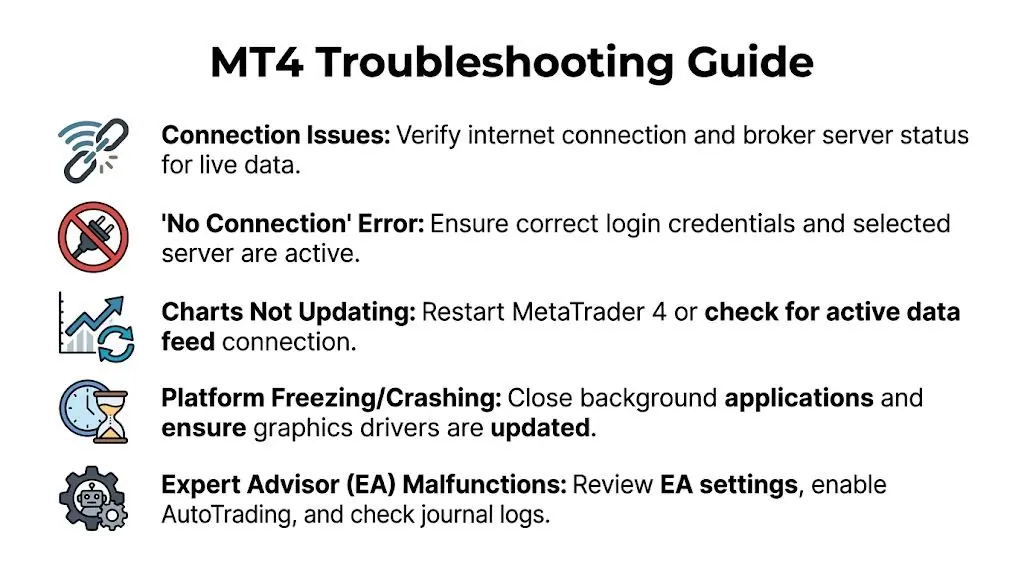
Invalid Account
This one creates panic, but the cause is usually simple. The terminal can’t match your login details with the selected server.
Check these first:
- Server selection Make sure you chose the exact server tied to your credentials.
- Password entry Re-enter it carefully. Saved passwords can be outdated.
- Installer source If you used a generic MT4 file, switch to the broker-specific one if available.
If the account details are right and the terminal still rejects them, stop retrying blindly. Confirm the credentials from the original broker or provider email and compare them line by line.
No Connection
When MT4 shows no connection, traders often blame the broker immediately. Sometimes that’s true, but often the issue sits on the local machine.
Common causes include:
- Internet connection dropped or became unstable
- Firewall or antivirus interference
- Wrong server selected during login
- Terminal didn’t complete initial sync cleanly
A practical sequence works best:
- Check internet outside MT4
- Restart the terminal
- Log out and log back in with the correct server
- Temporarily review antivirus or firewall interference
- Open the Journal tab and read what MT4 is reporting
Waiting for Update or frozen charts
If charts are open but not moving, the terminal may not be receiving fresh data or the symbol may not be active in the way you expect.
Try this:
- Right-click inside Market Watch and show symbols again
- Reopen the chart
- Restart MT4
- Check whether other symbols are updating
- Review the Journal for connection interruptions
Frozen charts are often a connection problem wearing a different label. Confirm live quotes before you assume the chart itself is broken.
Indicators or EAs don’t appear
This usually happens for one of two reasons. Either the files were copied into the wrong folder, or they were copied into the right folder for the wrong MT4 installation.
If you run multiple terminals, open the exact terminal you want, use its data folder, and place the files there. Then refresh Navigator or restart MT4.
Also check the obvious but often-missed details:
- Indicator file went into Indicators
- EA file went into Experts
- AutoTrading is enabled if the EA needs it
- The Experts and Journal tabs don’t show a load error
Platform freezing or crashing
When MT4 becomes unstable, look at what changed recently. New indicator. New EA. More charts. Longer history. Another app loading the CPU or memory in the background.
Use a clean test:
| Symptom | Likely cause | First response |
|---|---|---|
| MT4 freezes after startup | Recent add-on or corrupted workspace | Restart and remove the latest custom addition |
| Charts lag when switching | Too many charts or heavy indicators | Close extras and simplify templates |
| EA behaves oddly | Settings issue or execution restriction | Recheck inputs and review logs |
Most platform problems become easier once you stop changing five things at once. Test one fix, then check the result.
Frequently Asked Questions About MetaTrader 4
Can I use MT4 on a Mac instead of a Windows PC
You can, but Mac is usually the harder route.
MT4 was built for Windows, so Mac users typically run it through Wine, a virtual machine, or a remote Windows desktop. A significant number of traders look for Mac-compatible setups, which tells you the friction is real. If you are trading a prop evaluation or a time-sensitive session, extra layers between you and the platform are another place for things to break.
For a Windows-focused workflow, a PC is the cleaner choice. It cuts down setup issues, update problems, and odd file-path mistakes.
Can I install more than one MT4 terminal on the same PC
Yes, and many traders should.
Separate installs make sense if you use different brokers, trade personal and prop accounts side by side, or want one terminal for manual execution and another for testing. The key is giving each terminal its own install folder. That keeps templates, profiles, indicators, and expert advisors from getting mixed together.
If you also compare other desktop platforms before settling on your workflow, it helps to review how a different setup handles charts, workspaces, and order entry. Some traders use this NinjaTrader 8 download guide for desktop platform setup as a reference point.
Is the generic MetaQuotes installer safe to use
Usually, yes. It is still not my first choice for prop trading.
If you already know the broker or prop-connected broker feed you will use, download that broker-specific MT4 package first. That version is more likely to point you to the correct servers from the start, which reduces login confusion and avoids the common mistake of installing MT4, then realizing your required server is missing from the list. For firms with specific platform instructions, including setups traders often look for at MyFundedCapital, broker alignment matters more than convenience.
The generic MetaQuotes installer is fine as a backup. It is just not always the best first install.
What’s the safest way to download MT4 on PC
Use the official MetaQuotes site or, better yet, your broker’s own client area if you already have an account.
Avoid software download portals, forum attachments, and any page that bundles MT4 with extras you did not ask for. In practice, the safest download is the one tied directly to the trading server you will use. That is the prop trader’s way to install MT4 on a Windows PC. Fewer variables, fewer surprises on login day.
Trading involves risk of loss. Platform setup can reduce avoidable execution mistakes, but it does not reduce market risk. This content is educational only and not financial advice.
Conclusion Your Next Step with MyFundedCapital
A proper metatrader 4 download pc setup isn’t just a technical chore. It’s part of trading discipline. When your terminal is installed cleanly, connected to the right server, and configured around your workflow, you remove a lot of avoidable friction from your day.
That matters even more in structured trading environments where execution mistakes, platform confusion, or poor organization can hurt performance. A stable platform won’t make you profitable on its own, but an unstable one can definitely get in your way.
If you’re ready to apply a disciplined process in a professional environment, take time to review the next step carefully. Trading always involves substantial risk of loss and isn’t suitable for everyone. This article is for educational purposes only and is not financial advice.
If you want to put your platform setup and trading process to work in a structured prop environment, explore MyFundedCapital. You can compare funding programs, review account types, and choose the path that fits your style, whether that’s an evaluation model or instant access to simulated capital.