ES
ES
 DE
DE
 FR
FR
 AR
AR
 IT
IT
 NL
NL
 PL
PL
 SV
SV

Getting a powerful trading platform like NinjaTrader 8 set up correctly from the start is crucial. This guide provides a direct, step-by-step process for a safe NinjaTrader 8 download, connecting free data, and configuring your first workspace. Following these steps ensures your platform is stable, secure, and ready for serious strategy development.
How to Safely Download and Install NinjaTrader 8
Setting up a professional trading platform isn't complicated, but it does require paying attention to a few details. The entire point is to get the software installed correctly so it runs smoothly from day one, without security headaches or performance glitches. Before downloading, check your computer's specs—a trading platform processes a massive amount of real-time data, and a system that can't keep up will cause frustrating lags.
This diagram outlines the exact, secure process to follow.
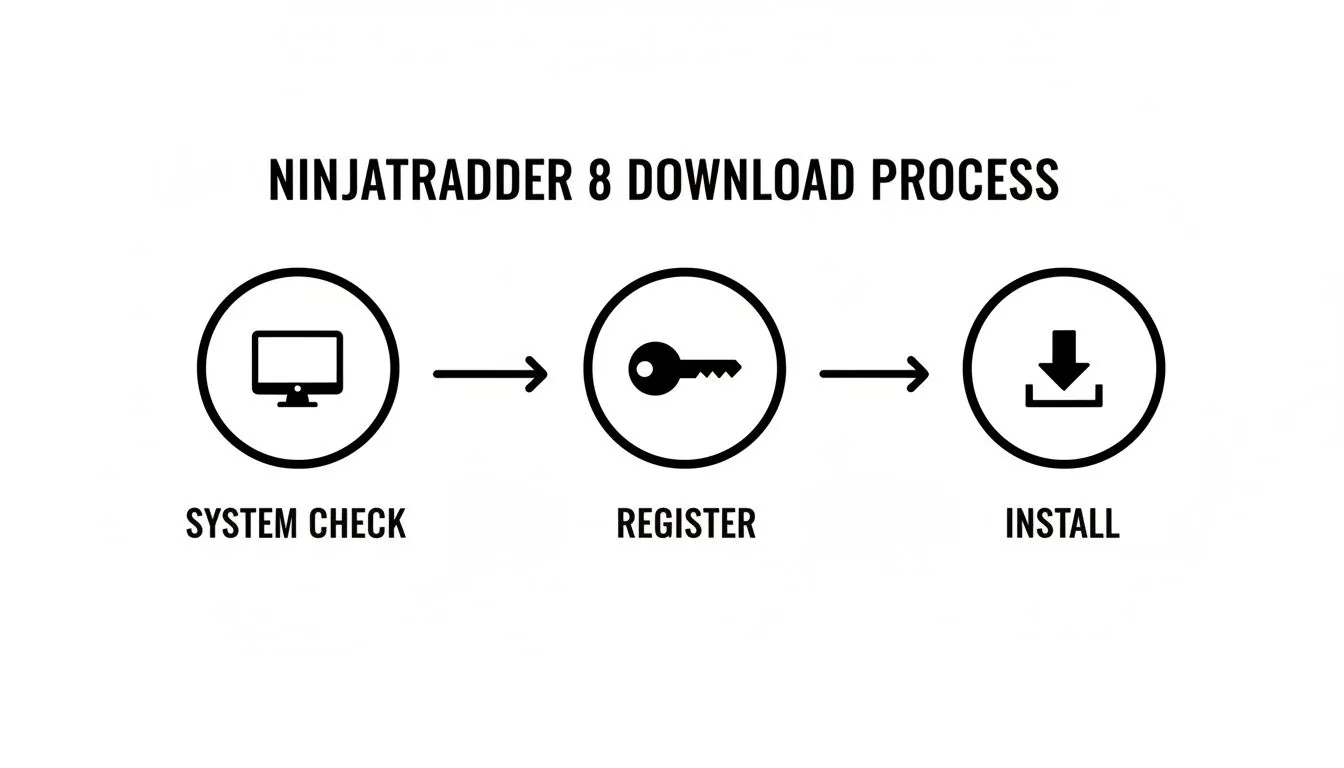
By following these key actions—checking your system, registering for your license key on the official NinjaTrader 8 website, and then running the installer—you set yourself up for a stable trading experience. Using the official site is the only way to guarantee you’re getting the authentic software, free from any malware that can lurk on third-party sites.
Step 1: Check Your System Requirements
Your computer's hardware directly impacts how well NinjaTrader 8 performs. While the platform can run on less powerful machines, you'll have a much better experience if you meet the recommended specs, especially if you plan on using multiple charts or running automated strategies.
Here’s a practical checklist of what you should aim for.
NinjaTrader 8 System Requirements
| Component | Minimum Requirement | Recommended for Optimal Performance |
|---|---|---|
| Operating System | Windows 10 (64-bit) | Windows 11 (64-bit) |
| Processor (CPU) | 1 gigahertz (GHz) or faster processor | 2 (GHz) or faster quad-core processor |
| Memory (RAM) | 4 GB RAM | 8 GB RAM or more |
| Storage | Standard Hard Drive (HDD) with 500 MB free | Solid State Drive (SSD) with 1 GB+ free |
| Display | 1024 x 768 screen resolution | Dual monitors with 1920 x 1080 resolution |
| .NET Framework | Version 4.8 | Version 4.8 |
Meeting the minimums will get you by, but hitting the recommended specs ensures the platform can handle heavy data flow without issue.
Actionable Tip: Pay close attention to the recommended column. An upgrade to a Solid-State Drive (SSD) and 8 GB of RAM makes a world of difference in how quickly the platform loads and responds. It’s a small investment for a massive improvement in stability and is a practical step towards a professional setup.
Once your system is ready, you can tailor the platform to your trading style. If you're curious about which tools and charts will be most useful, check out our guide on essential platform features.
Step 2: Connect to Free Market Data Feeds
You've got NinjaTrader 8 installed. Now you need market data to bring your charts to life. Without a data feed, your charts will be blank and your strategy backtester will be useless, which is a non-starter when preparing for a prop firm challenge where practice and strategy validation are everything.
A common mistake is thinking you need to immediately pay for an expensive, real-time data subscription. For developing and testing your strategies, high-quality historical data is often all you need, and you can get it for free.
How to Get Free, Unlimited Data
When you're gearing up for a funded account challenge, every dollar counts. One of the best ways to get quality, unlimited Forex data is to use a demo account from a broker like FXCM. This connects a fantastic data source directly within NinjaTrader 8.
The process is straightforward:
- Step 1 Head over to a provider like FXCM and register for a free demo account.
- Step 2 Check your email for a username and password for their platform.
- Step 3 Inside NinjaTrader, go to Connections > configure, select "FXCM" from the list, and enter the credentials you received.
Once that connection is active, NinjaTrader can pull in years of historical Forex data. This lets you rigorously backtest your trading ideas without spending a dime on data feeds.
Actionable Tip: Access to unlimited free data is a massive advantage. It means you can test your system's performance through all sorts of market conditions—high-volatility news events, choppy sideways markets, or quiet holiday trading. This is how you build a robust strategy that can handle whatever the market throws at it during your evaluation.
This setup is ideal for any trader prepping for a prop firm challenge. For a more detailed walkthrough, the official platform guides have excellent information on the NinjaTrader 8 download and data configuration.
Step 3: Set Up Your First Trading Workspace
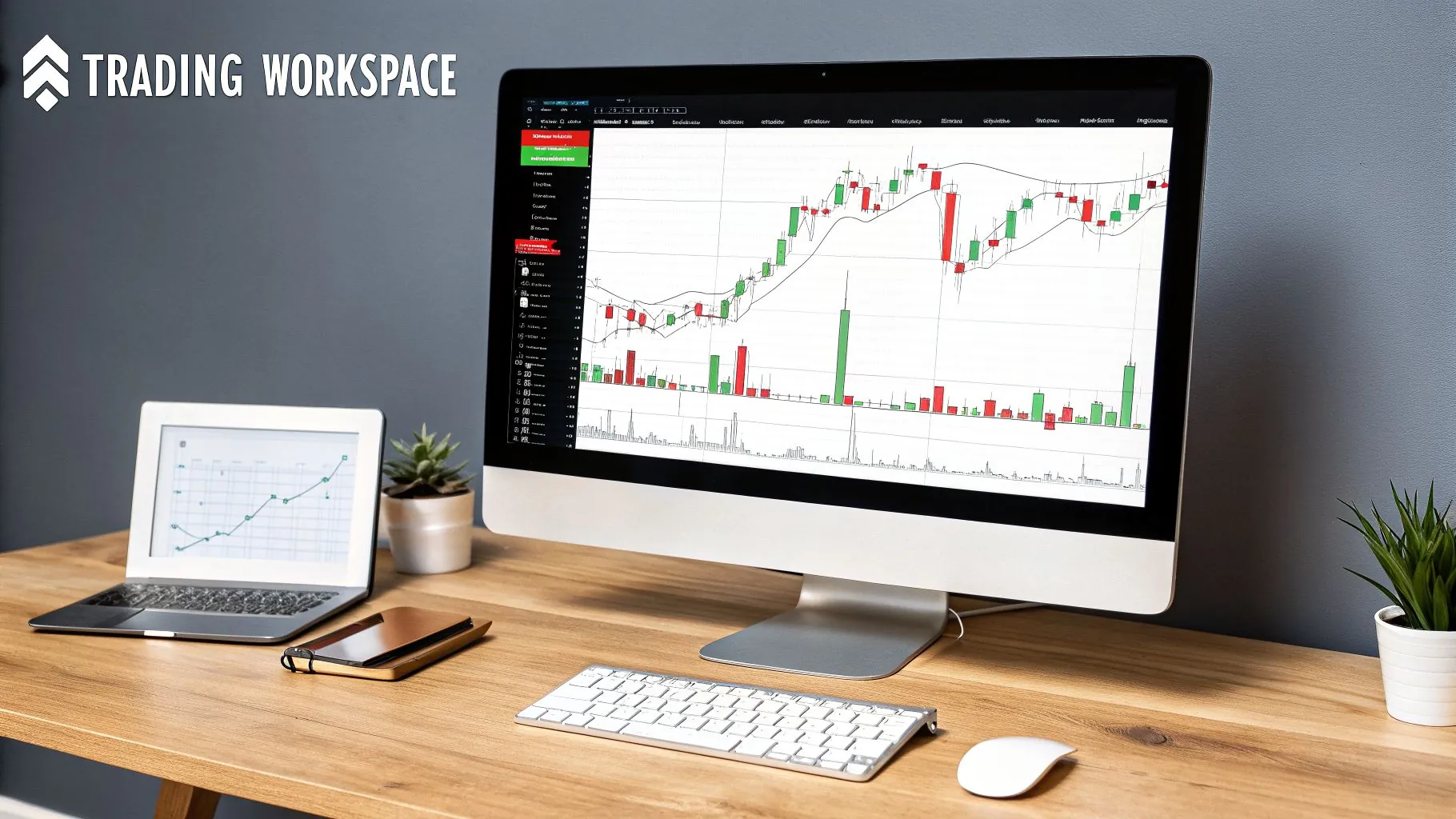
Now that you've installed NinjaTrader 8 and connected your data feed, it's time to build a functional, intuitive space that’s tailored to how you see the market. The goal is to create an environment where you can spot opportunities and act decisively with the fewest possible clicks.
Customizing Your Core Components
First, let's get a chart up. From the main Control Center window, go to New > Chart. You'll be prompted to choose an instrument—a good place to start is with a major futures contract like the E-mini S&P 500 (ES).
With your chart open, right-click anywhere on it and select Indicators to open the configuration menu.
Concrete Example: For day trading futures, a simple but powerful combination is a 20-period Exponential Moving Average (EMA) to gauge trend and a Volume Profile indicator. The EMA gives you a feel for short-term momentum, while the Volume Profile reveals critical support and resistance zones based on where traders have done the most business. This is a clean setup that provides a ton of information without clutter.
Once your primary chart is dialed in, you can add other essential windows:
- Market Analyzer A personal market scanner. Set it up to monitor a watchlist of instruments, pulling in real-time data like Net Change, Volume, and daily P/L.
- SuperDOM The SuperDOM (Depth of Market) is essential for precise order entry. Open one directly from your chart to see the order book and manage your entries, exits, and stop-losses with a single click.
As you arrange these windows, go to Workspaces in the Control Center and save your layout. This ensures all your tools load exactly how you like them every time. If you're thinking about expanding your setup, check out our guide on the best monitors for trading.
Using Automated Strategies With NinjaTrader
One of the biggest draws of the NinjaTrader 8 download is its powerful automation. This is not about a "holy grail" that prints money; it's about building, testing, and deploying a trading system based on your own rules. For anyone trying to pass a prop firm evaluation, this is huge—it removes emotion and forces you to stick to your plan.
Test Your Strategy With the Strategy Analyzer
Before you risk any capital, you must see if your idea is viable. This is where NinjaTrader's Strategy Analyzer comes in. It lets you run your automated system on historical data to see how it would have performed—a process called backtesting.
You can run your strategy on years of data to analyze key performance metrics:
- Total Net Profit Is the strategy profitable over time?
- Profit Factor How much you make for every dollar you lose. A number above 1.5 is a good starting point.
- Max Drawdown The largest peak-to-trough decline your account would have experienced. This is critical for prop firm traders to monitor.
- Win Rate The percentage of winning trades.
This is your chance to find weak spots and fine-tune your rules before it costs you anything. If you're new to this, our guide on the best back-testing software explains why this process is non-negotiable for serious traders.
Actionable Tip: The real power of automation isn't just execution—it's enforcing your risk management flawlessly. In a prop firm challenge where drawdown rules are strict, having a system that automatically respects your stops can be the single biggest factor in whether you pass or fail. Trading always involves a significant risk of loss.
For example, the M Trader automated strategy recently generated a profit of $11,137.50 in only ten trading sessions, with an 80% win rate. A significant portion of that profit came from trading Nasdaq futures (NQ), showing what a refined system can do. You can see the daily breakdown in the M Trader NinjaTrader 8 strategy results.
Will My NinjaTrader Skills Transfer to Prop Firm Platforms?
You’ve put in the hours mastering NinjaTrader 8 and building your trading discipline. But then you look at a prop firm like MyFundedCapital and see we use platforms like DXtrade, cTrader, and Match-Trader. It’s a fair question to ask: was all that practice a waste of time?
Absolutely not. The skills you've learned have very little to do with the platform itself. Think of it like learning to drive a car. Once you understand the rules of the road, how to read traffic, and how to control a vehicle, you can drive almost any car. You might need a minute to find the windshield wipers in a new model, but the core skill of driving is already there.
Trading is the same. The real work is in developing universal, high-value skills:
- Disciplined technical analysis
- A rock-solid strategy development process
- Precise risk calculation
- Unshakeable emotional control
The mechanical process of identifying a setup, defining your entry, placing a stop-loss, and setting a take-profit target is identical whether you click a button in NinjaTrader or cTrader.
The real goal of your practice is to build the mindset and habits of a professional trader. Learning to execute your strategy perfectly is infinitely more valuable than memorizing a platform's button layout. This content is for educational purposes only and is not financial advice.
The foundation you built with your NinjaTrader 8 download is exactly what will set you up for success.
FAQ: Common Questions About the NinjaTrader 8 Download
1. Is NinjaTrader 8 really free?
Yes, the core platform is completely free for charting, strategy backtesting, and sim trading. You can download the software, connect it to a free data feed, and practice your strategies without paying anything. Costs only apply when you want to trade live money, which requires a license lease (starting around $99/month) or a lifetime purchase (currently $1,499). For learning and preparing for a funding challenge, the free version provides everything you need.
2. Can I use NinjaTrader 8 on a Mac?
No, NinjaTrader 8 is built for Windows and does not have a native macOS version. Mac users can use workarounds like Boot Camp (to install Windows on a separate partition) or Parallels (to run Windows in a virtual machine), but these are unsupported solutions and may have performance issues. For a stable trading experience, using a dedicated Windows PC that meets the recommended system requirements is the most practical approach.
3. Do I need a paid data feed to use NinjaTrader 8?
No, you do not need a paid data feed to get started. For strategy development, backtesting, and simulation trading, you can connect to a free demo account from a broker like FXCM to access unlimited historical Forex data. This is a cost-effective way to practice and refine your trading plan before committing to any subscriptions.
Please remember that all trading carries a significant risk of loss. This guide is for educational purposes only and should not be considered financial advice.
Once you've sharpened your skills on the simulator, why not apply them in a real funding environment? MyFundedCapital provides a clear-cut path to trading with our capital, featuring straightforward rules and excellent platforms like DXtrade and cTrader.
Compare our funding programs and see which account is the right fit for your trading style.