Step 1 of 5
Four order types in one ticket
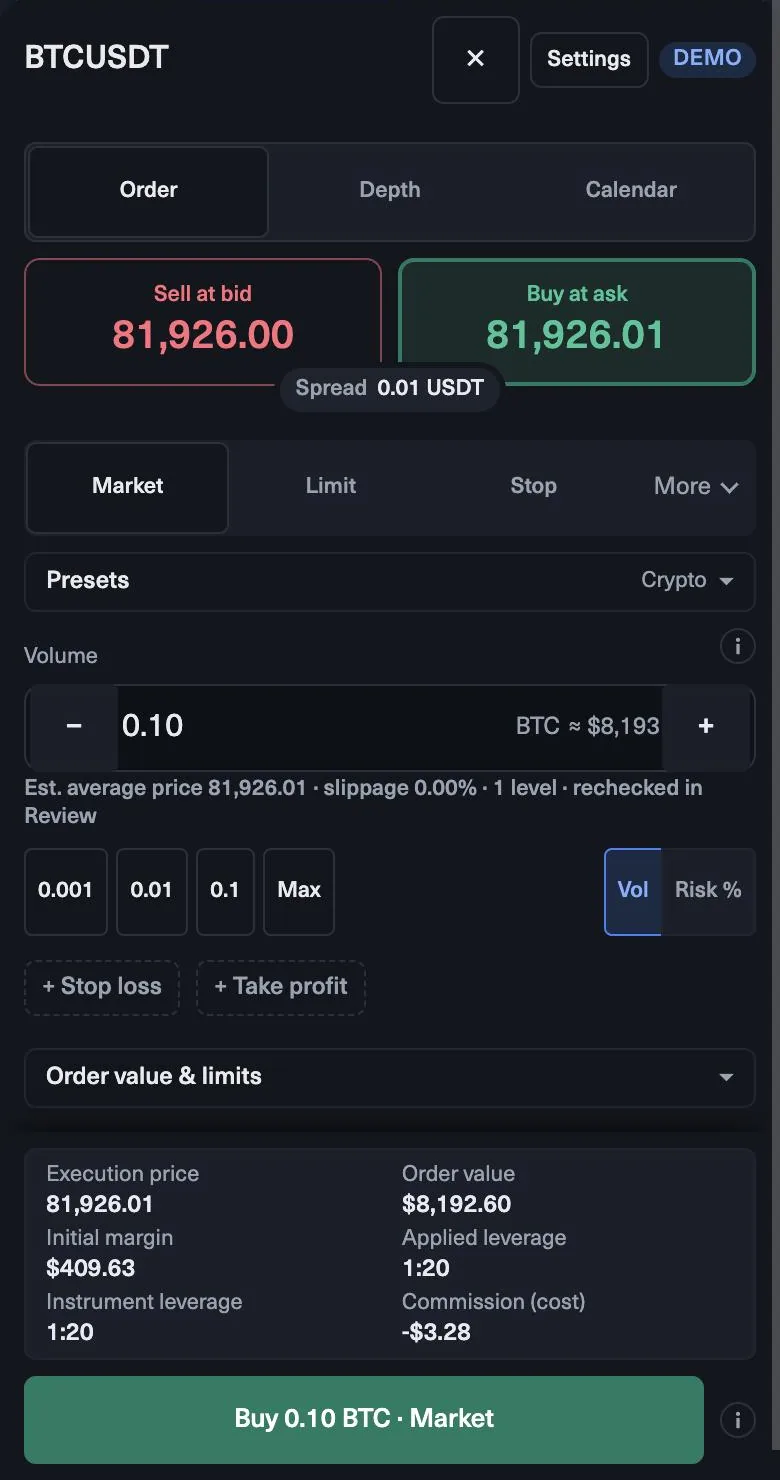
The order ticket in the MyFundedCapital Terminal offers Market, Limit and Stop, with Stop limit under More. The difference is simple: do you want to enter now, at a better price, or only once price has moved?
Say EURUSD trades at 1.0840.
| Order | Buy example | Sell example | Use it when |
|---|---|---|---|
| Market | Buy now at the ask | Sell now at the bid | You want in at once |
| Limit | Buy at 1.0820, below the price | Sell at 1.0870, above the price | You expect a pullback to a level |
| Stop | Buy at 1.0870, above the price | Sell at 1.0820, below the price | You want price to break a level first |
| Stop limit | Triggers at 1.0870, fills up to 1.0873 | Triggers at 1.0820, fills down to 1.0817 | You want a breakout but not a bad fill |
Step 2 of 5
Market orders and the spread
A market order fills at the best price available now. The ticket shows two prices: Buy at the ask and Sell at the bid, with the spread between them. If the bid is 1.0840 and the ask is 1.0841, a buy fills near 1.0841 and starts about one pip in the red. That is normal; it is the cost of entering at once.
Set the size in Volume, using the quick buttons or typing a figure. Market orders suit a setup that is ready now, for example a candle that has just closed at a level you marked earlier. In a fast market the fill can differ slightly from the price you saw, so leave a little room in your risk.
Step 3 of 5
Limit and stop orders: waiting for price
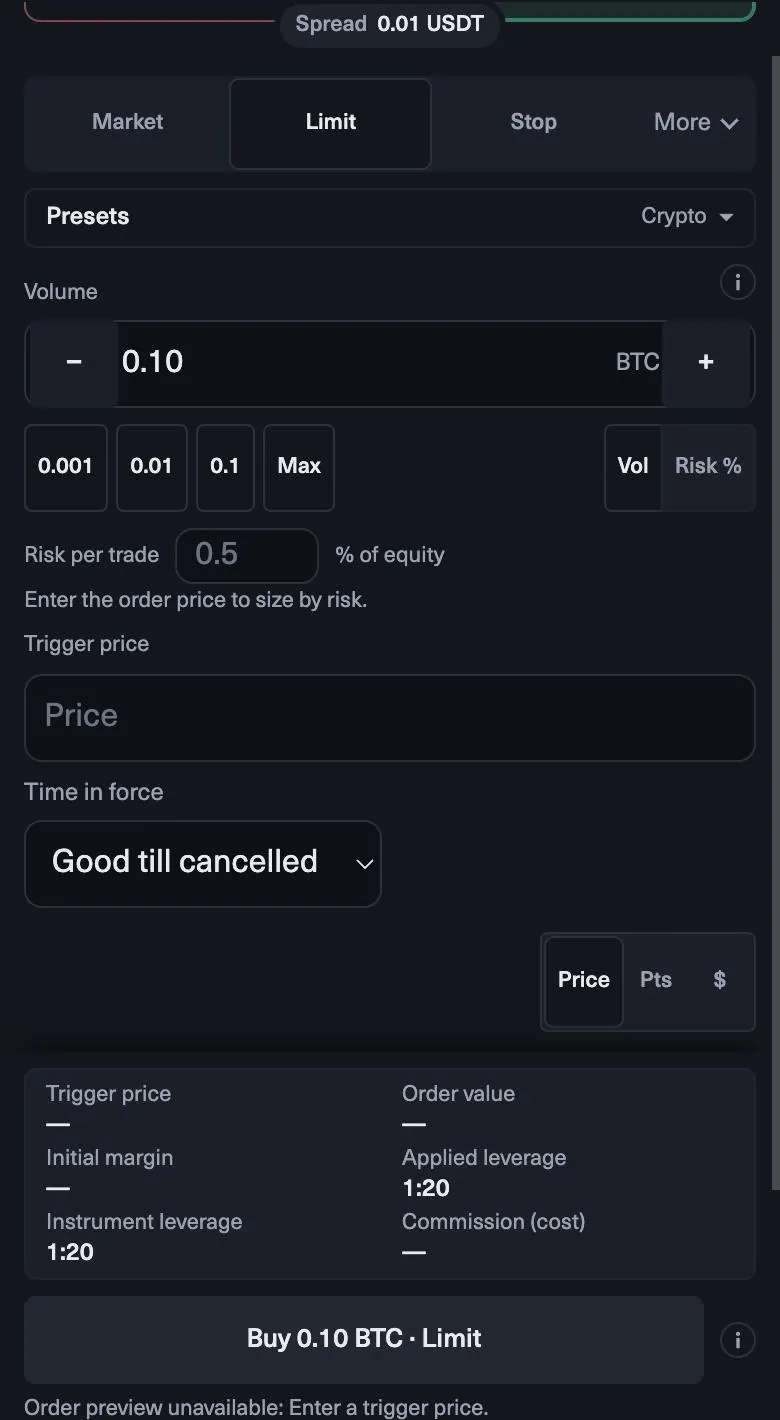
Limit and stop orders are pending orders: they wait until price reaches your level. A limit enters at your price or better. Use it to buy a pullback into support or sell a rally into resistance. The catch: if price turns just before your level, you are not filled.
A stop order enters once price trades through your level. Use it for breakouts: buy only if EURUSD clears 1.0870. In a fast move a stop order can fill beyond its level. A stop limit caps that: it triggers at the stop price and fills only up to your limit price, so it may not fill at all in a jump.
For pending orders the ticket offers a Time in force, for example Good till cancelled. Cancel an order you no longer want; an old order can fill when the setup is gone.
Step 4 of 5
Which order fits which plan
- Pullback to a level. Price is rising and you want to buy at support below. Use a buy limit at the zone.
- Breakout. Price is pressing against resistance and you only want in if it breaks. Use a buy stop just above it.
- Setup ready now. The candle has closed and the entry is valid. Use market.
- News nearby. Check the Calendar tab first. Your plan pauses new trades from 2 minutes before to 2 minutes after high-impact news on the symbols it moves, so do not plan an entry inside that window.
Whatever the type, decide the stop loss before you choose the order. The order type is about how you enter; the stop is about how much you can lose.
Step 5 of 5
Set it up in the Terminal
- Pick the symbol, for example EURUSD.
- Choose Market, Limit or Stop, or Stop limit under More. For a pending order, enter its price.
- Set Volume, or switch sizing to Risk % and enter your risk per trade, for example 0.5% of equity.
- Press + Stop loss and + Take profit and enter each as a price, in points or in dollars.
- Read Risk at SL and the box If the stop loss hits: it shows your daily and overall loss limits before and after.
- For a pending order, set the time in force, then send.
In the free demo orders are switched off, so you can practise these steps on live prices without sending anything.
Recap
- A market order buys at the ask and sells at the bid, so you pay the spread the moment you enter.
- A limit waits for a better price; a stop waits for price to prove a move. Neither is sure to fill.
- Add a stop loss before you send any order; the ticket shows what it costs against both loss limits.
Check yourself
0 / 3
Lesson complete