

 AR
AR
 NL
NL
 FR
FR
 DE
DE
 ES
ES
 IT
IT
 PL
PL
 SV
SV
 PT
PT

You download an indicator, move the file onto your phone, open MT4 mobile, and nothing happens. That's where most traders hit the wall.
If you're trying to use mt4 mobile custom indicators, the hard truth is simple: you can't install them directly on the mobile app. What you can do is choose the least painful workaround for your style, your risk limits, and your execution needs.
Why You Can't Add Custom Indicators to MT4 Mobile
If you've tried copying an .mq4 or .ex4 file to your Android or iPhone, you didn't miss a hidden menu. MT4 mobile just doesn't support that workflow.
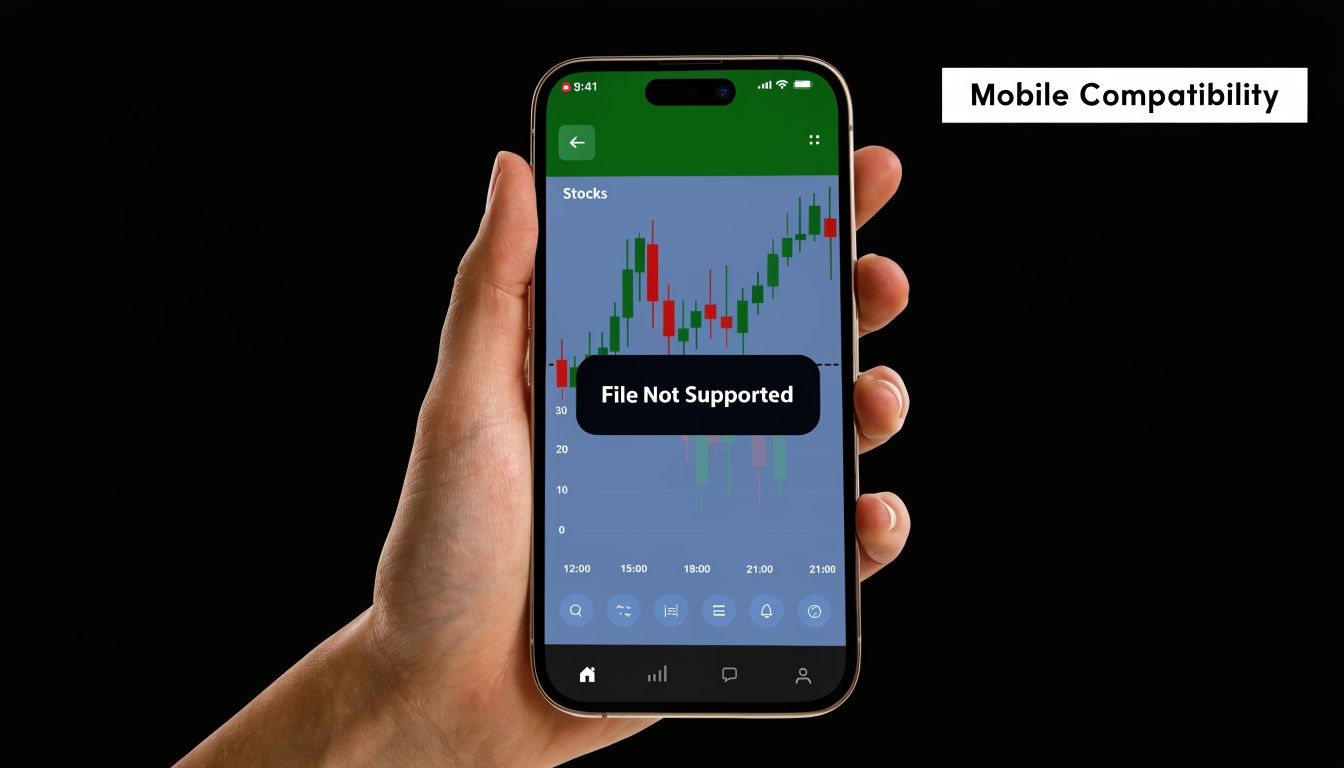
It's a platform restriction, not a setup mistake
MetaTrader 4 Mobile launched on Android in 2010, but custom indicators (.ex4/.mq4 files) are unsupported on MT4 Mobile because of the platform's security architecture, which is designed to prevent code injection and hacking risks, according to the official MetaTrader 4 custom indicators documentation. The same source explains that mobile apps operate inside protected environments, so users can't access the MQL4 folders needed for installation. That affects a platform with 40 million+ users, which shows how widespread this limitation is.
Desktop MT4 and mobile MT4 are not the same product with different screen sizes. Desktop gives you file access, MetaEditor, and the usual indicator folders. Mobile gives you charting, order management, and built-in tools, but not code-level customization.
Why traders keep getting confused
A lot of installation guides online are written for the desktop terminal. They tell you to:
- Open the data folder: Find the MT4 files on your machine.
- Paste into Indicators: Drop the file into MQL4/Indicators.
- Restart the platform: Refresh Navigator and attach the tool.
That process is valid on desktop. It breaks on mobile because the app doesn't expose that file structure.
Practical rule: If a method starts with “copy the file into MQL4/Indicators,” it is a desktop method, not a mobile method.
What this means in real trading
This isn't just an inconvenience. It changes how you manage trades away from your desk.
If your strategy depends on a custom session indicator, a volatility filter, a dashboard, or any custom confirmation tool, the mobile app can't reproduce your full chart logic. You're left with three choices:
- Run the setup elsewhere and access it remotely
- Convert the setup into alerts
- Use another platform that fits mobile trading better
That's why the phrase mt4 mobile custom indicators is a bit misleading. On mobile, you're not really “adding” them. You're building a workaround around a platform limit.
Workaround 1 The VPS and Remote Desktop Method
If you need your actual desktop chart, this is the closest thing to having full MT4 on your phone. You're not installing custom indicators on MT4 mobile itself. You're running desktop MT4 on a remote Windows machine and controlling that machine from your phone.
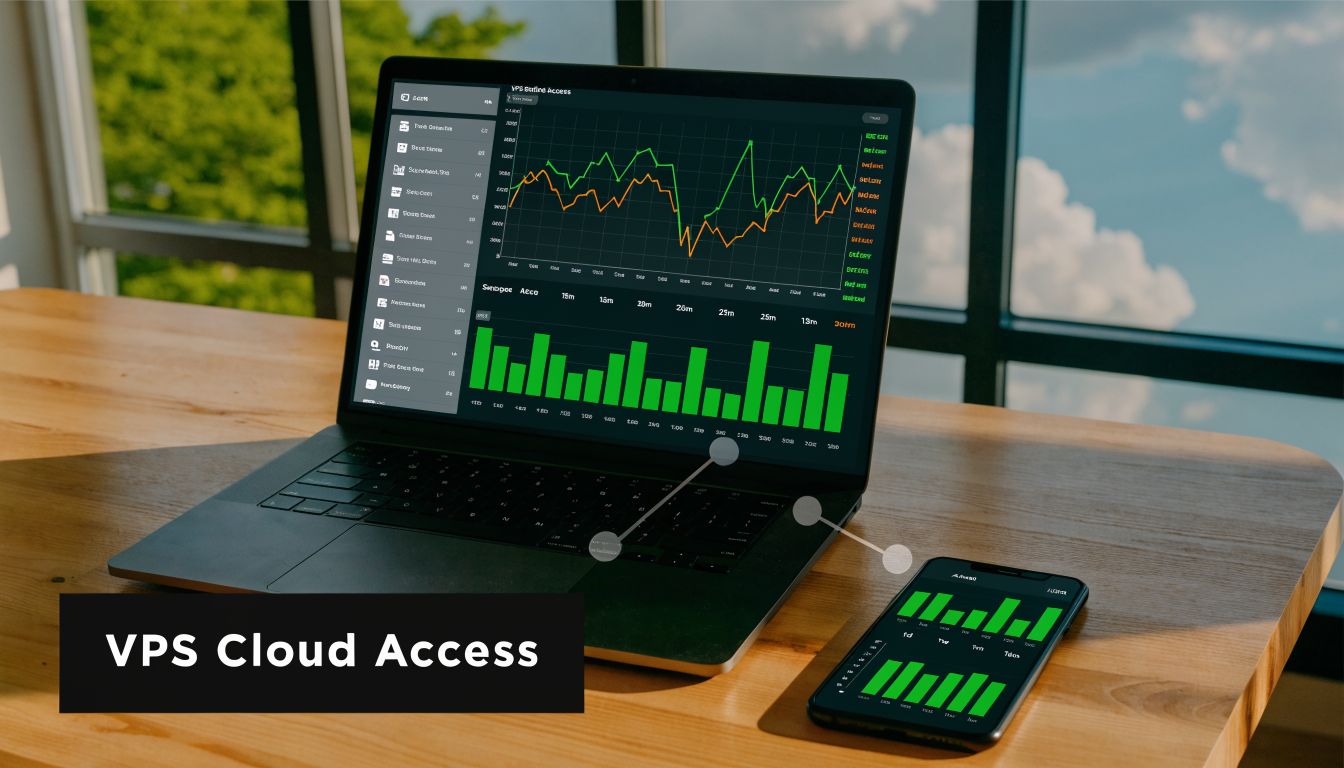
What a VPS actually does
A VPS is a virtual private server. Think of it as a computer that stays online even when your laptop is off.
You install desktop MT4 on that server, add your custom indicators there, and leave it running. Then you use a remote desktop app on your phone to log into that machine and view the same platform you'd see on a Windows desktop.
This is the only workaround that gives you:
- Full custom indicator access
- Desktop templates and chart layouts
- EA support
- A stable always-on environment
A setup that actually works
The process is straightforward if you keep it boring and clean.
Choose the VPS first
Pick a Windows VPS close to your broker's trading server. Distance matters because the workaround typically costs $10-30/month and adds 5-50ms of latency depending on proximity, based on the VPS guidance in this mobile MT4 workaround video.Install desktop MT4 on the VPS
Use a clean terminal install. If you need the platform file, use the official MT4 PC download page as your starting point.Add your indicators on the VPS desktop
Put the files into the proper MT4 indicator folder on the VPS, restart the terminal, and confirm that each chart loads correctly.Add a remote desktop app on your phone
Connect from Android or iPhone and test chart navigation, order placement, and symbol switching.Stress-test before using it on a live evaluation or funded account
Open several charts, switch timeframes, and test alerts during active market conditions.
Where this method helps and where it hurts
The VPS method is strong when your strategy depends on exact chart structure. It's also the only realistic route if you use EAs or custom dashboards.
But the trade-off is not small.
| Factor | VPS and remote desktop |
|---|---|
| Indicator support | Full desktop support |
| Mobile convenience | Moderate |
| Execution speed | Depends on VPS quality and distance |
| Best fit | Swing traders, some day traders |
| Weak spot | Scalping and fast manual execution |
A VPS is a workaround for access. It is not a magic fix for poor execution conditions.
For traders who care about infrastructure quality, it's worth studying Throughwire's specialized high-speed infrastructure. Not because every trader needs an advanced stack, but because it shows what serious low-latency design looks like and why generic hosting often disappoints.
My practical take
For swing trading, this method is usually good enough. For day trading, it can work if your entries aren't extremely tight.
For scalping, I'd be careful. The same VPS source notes that this setup can be a drawback for traders who need sub-10ms execution to avoid slippage on funded accounts. If your edge depends on fast reaction around a precise level, remote desktop on a phone is often more friction than advantage.
Workaround 2 Using Custom Alerts as Mobile Signals
A lot of traders don't need the full chart on mobile. They need one thing: a reliable prompt that tells them when their setup is close or active.
That's where custom alerts beat the VPS route.
How the alert-only method works
Your custom indicator stays on desktop MT4, not mobile. When the indicator condition is met, desktop MT4 sends a push notification to your phone through your MetaQuotes ID.
You then open MT4 mobile and decide whether to manage or place the trade manually.
This setup works well when you want signal delivery without babysitting a remote desktop session.
The basic setup
Use a demo first. A clean test environment helps you catch bad alert logic before you trust it.
If you need one, open an MT4 demo account and wire the notifications there before using the same process on a more serious setup.
Then do this:
- Find your MetaQuotes ID: Open MT4 mobile and locate the messages or chat area where the app shows your ID.
- Open desktop MT4 settings: Go into the notifications section and enter that ID.
- Enable push notifications: Turn on the feature and send a test message.
- Connect your indicator logic: Use an indicator that supports alerts natively, or modify the code so it sends alerts when your conditions trigger.
- Test across sessions: Make sure the alert fires when the market is moving, not only when charts are idle.
If your mobile workflow only needs “price reached zone,” “trend condition aligned,” or “signal confirmed,” alerts are usually cleaner than remote desktop.
When this method is better than VPS
This method is lighter, cheaper, and less annoying on a phone. It also forces discipline because you're not staring at charts all day from a tiny screen.
It fits traders who:
- Trade planned setups: You already know your levels and just need a trigger.
- Manage risk manually: You're comfortable making the final decision yourself.
- Don't run EAs on mobile: You need information, not automation.
- Want fewer moving parts: There's less setup and less chance of remote access problems.
The downside is obvious. You do not get the full custom indicator display on mobile. You get a message, then you act. If your strategy needs visual context from several custom tools at once, alerts may be too thin.
Comparing Workarounds for Prop Firm Traders
For a prop trader, the question isn't “Which workaround is coolest?” It's “Which one reduces stupid mistakes under pressure?”
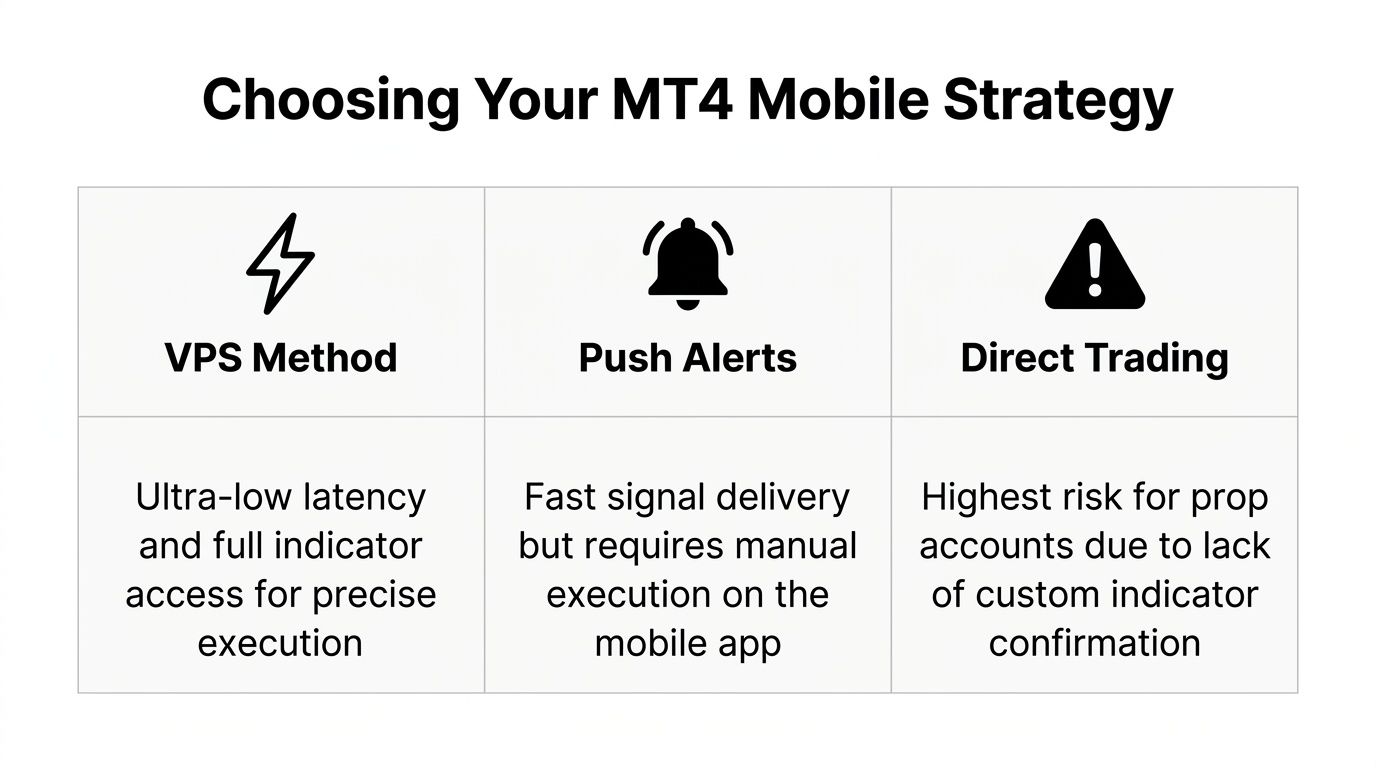
Side by side from a funded trader's perspective
Here's the clean comparison.
| Criteria | VPS and remote desktop | Push alerts | Direct MT4 mobile trading without custom confirmation |
|---|---|---|---|
| Chart access | Full desktop chart | No full chart | Mobile built-ins only |
| Custom indicators | Yes, on remote desktop | Yes, but only on desktop generating alerts | No |
| Manual execution speed | Slower on phone than at desk | Faster than remote desktop if setup is simple | Fastest, but least informed |
| Complexity | Highest | Moderate | Lowest |
| Best fit | Traders who need full chart context | Traders who trade planned signals | Traders using only built-in tools |
The risk issue most traders underestimate
Reports cited by TradersDNA say that using 5+ indicators can cause 80% of app crashes and lag spikes of 5-10 seconds on mid-range hardware, which matters because a few seconds of lag can put a prop trader into a bad loss very quickly, especially around a 5% daily loss limit, as outlined in this custom indicators on MT4 mobile analysis.
That matters even if you're using desktop through a workaround. More indicators do not automatically mean a better decision. More often, they mean more lag, more clutter, and slower reaction.
Choosing by trading style
Use the workaround that matches your actual strategy, not the one that sounds more advanced.
- If you swing trade: VPS can work well, and alerts often work even better because you usually have time to confirm and execute.
- If you day trade with structured setups: Alerts are often the sweet spot. You get signal delivery without wrestling a remote desktop in the middle of a move.
- If you scalp: Mobile workarounds are usually a compromise. Precision matters too much, and every extra layer can hurt execution.
- If you trade funded challenges: Simplicity has value. A setup that is slightly less powerful but easier to trust is often the better setup.
Trading rule: The best mobile workaround is the one that preserves your decision quality under your risk limits.
A lot of prop failures don't come from the strategy itself. They come from late entries, chart confusion, platform friction, and rushed decisions after a notification. That's why direct mobile trading without your normal confirmation stack is the highest-risk choice of the three.
Exploring Alternative Platforms Without This Limitation
At some point, the better question is whether MT4 is still the right base platform for your workflow. If your trading depends on moving smoothly between desktop and mobile, old workarounds can become a permanent tax on your process.
Why some traders move on from MT4
MT4 is still familiar, fast, and widely supported on desktop. But mobile is where the friction shows up.
If you're trying to manage a modern trading workflow, newer platforms usually feel less patched together. cTrader and DXtrade are better examples of platforms designed around cleaner cross-device use, rather than desktop-first architecture with a mobile companion app.
MT5 is also part of that conversation. It's worth comparing the two before you rebuild your setup around another workaround. This side-by-side look at MT4 vs MT5 is useful if you're deciding whether to stay with the older terminal or shift your workflow.
What better alternatives usually improve
The main improvement is not “more features.” It's less friction.
A better mobile-capable platform usually gives you:
- Cleaner chart syncing across devices
- More usable web and mobile interfaces
- Less dependence on remote desktop
- A more natural workflow for manual trade management
That doesn't mean every newer platform will support every custom tool exactly the way MT4 desktop does. But if your current setup requires a VPS, remote access, and backup alerts just to function on a phone, the platform is working against you.
A practical standard for choosing a platform
When traders evaluate a new platform, they usually focus on order entry and chart appearance. They should also check how easy it is to learn and support internally. If you coach teammates, run trade reviews, or build repeatable operating procedures, clear walkthroughs matter. Resources on creating studio-quality tutorials for customer support are useful because they show how to document workflows cleanly, which is exactly what most trading teams and serious solo traders need when changing platforms.
The point is simple. If you spend more time maintaining the workaround than executing the strategy, the workaround has become the problem.
Frequently Asked Questions About MT4 Mobile Indicators
Can I install .mq4 or .ex4 files directly on MT4 mobile?
No. MT4 mobile doesn't allow direct installation of custom indicator files. If your plan depends on dropping files into the app and activating them locally, it won't work.
Your realistic options are remote desktop access to a VPS or desktop machine, or using desktop-generated alerts as mobile signals.
Is a VPS safe enough for trading accounts?
It can be, but only if you treat it like a serious trading machine. Use strong credentials, keep access limited, and avoid installing random tools or indicators from sources you don't trust.
The main mistake traders make is thinking a VPS fixes everything by itself. It doesn't. A badly maintained VPS is just a remote version of a messy desktop.
Will MetaQuotes add proper support for mt4 mobile custom indicators?
There's no reason to assume that support is coming. The mobile limitation exists because of the app's security model, not because MetaQuotes forgot to build a feature.
So the practical answer is this: trade as if the restriction is permanent. If direct mobile customization is mission-critical to your strategy, choose a platform based on that requirement instead of waiting.
Is MT5 mobile meaningfully better?
It depends on what you mean by better. MT5 is newer and part of a more modern ecosystem, but that doesn't automatically mean every custom workflow becomes easy on mobile.
If your core issue is full custom logic on a phone, you still need to test the exact workflow you want before switching platforms.
Does the phone itself matter?
Yes, mostly for usability and stability, not because it provides hidden MT4 features. A better screen, stronger hardware, and a healthier battery make mobile trade management less frustrating. If you're replacing old hardware, a guide to cheap refurbished iPhones UK can be a practical way to upgrade without overspending.
Trading always involves risk of loss. Mobile convenience doesn't reduce that risk, and a weak setup can increase it. Use these workarounds for education and workflow improvement, not as a substitute for disciplined execution or proper testing. This article is educational only and not financial advice.
If you're ready to trade with clear risk rules and room to scale, explore MyFundedCapital to compare funding programs, account types, and challenge options that fit manual or system-based traders.
