

 AR
AR
 NL
NL
 FR
FR
 DE
DE
 ES
ES
 IT
IT
 PL
PL
 SV
SV
 PT
PT

You’re probably in one of two spots right now. Either you’ve just opened MT4 and the platform looks busier than expected, or you’ve traded a little already and want to practice properly before risking real money or taking a prop firm challenge.
A good mt4 demo account fixes both problems. It gives you a safe place to learn the platform, test a method, and build habits that won’t fall apart once rules like daily loss limits start to matter. Trading involves risk of loss, and this article is educational only, not financial advice.
What Is an MT4 Demo Account and Why Use One
An mt4 demo account is a practice account that runs on the MetaTrader 4 platform using virtual funds instead of your own cash. The easiest way to think about it is a flight simulator for traders. The controls are real, the market data is close to real, but the financial damage from mistakes is removed.
MT4 demo accounts usually come with virtual balances from $10,000 to $100,000, depending on the provider. FP Markets notes examples such as up to $100,000 in virtual USD, while tastyfx offers $10,000 and CMC Markets provides £10,000. Those accounts can mirror live quotes, trading power settings such as up to 1:200, and core MT4 tools like Expert Advisors and indicators, while still avoiding real financial exposure, as described in FP Markets' MT4 demo account guide.
That sounds simple, but serious traders use demo accounts for more than clicking buy and sell.
What a demo account is actually good for
- Learning the platform fast. You can practice opening charts, setting stop losses, switching timeframes, and using the order window without paying for every mistake.
- Testing a trading process. If your strategy depends on session timing, pullbacks, breakouts, or indicator confirmation, the demo lets you test the routine against live market flow.
- Practicing risk control. This matters more than most beginners think. A demo account lets you rehearse position sizing and loss limits before money gets involved.
- Checking whether your method fits MT4 tools. If you plan to use indicators, scripts, or EAs, you need to know whether MT4 supports the workflow you want. If you’re comparing platforms first, this MT4 vs MT5 comparison helps clarify where each one fits.
What a demo account is not
A demo isn’t proof that you’re ready for live execution. It removes the pain of loss, and that changes behavior. Many traders take setups on demo that they’d never hold when the position is tied to rent money or challenge rules.
Practical rule: Treat your mt4 demo account like a training environment, not a video game. If you use fake discipline in demo, you’ll carry fake discipline into live trading.
Why demo matters for prop challenge prep
If your real goal is a funded account, the demo should reflect that. Don’t just try random trades. Build a routine around drawdown control, trade selection, and repeatable execution. A good demo period should answer three questions:
- Can you follow one plan for a sustained stretch?
- Can you stop after a bad trade instead of forcing revenge entries?
- Can you stay inside fixed risk limits?
That’s where demo becomes useful. Not because it feels safe, but because it exposes whether your process is stable.
Finding a Broker and Installing the MT4 Platform
A lot of traders rush this part. They grab the first broker offering MT4, open a demo, and only later discover the instrument list is thin, the pricing doesn’t fit their style, or the account settings don’t match how they plan to trade.
Pick the broker first. Then install the platform tied to that broker’s demo server.
What to look for in an MT4 demo broker
Not all demo environments are useful. Some are fine for learning buttons. Others are better for strategy work.
Use this checklist before you download anything:
- Instrument coverage. If you trade beyond major forex pairs, check whether the demo includes the products you want to practice.
- Position sizing flexibility. For small-risk training, micro lots matter. MT4 demo accounts can support 0.01 lot trading, which is useful when you want to keep your risk model realistic, according to tastyfx's MT4 demo account overview.
- Spread environment. If your style is short-term, pricing matters. The same tastyfx page notes features such as spreads starting from 0.0 pips on major pairs, depending on account type and market.
- Margin multiplier settings. MT4 demos can offer maximum retail margin multiplier of 1:200, which gives you room to test margin behavior without distorting position size assumptions.
- Platform access on all devices. If you mark up charts on desktop and monitor on mobile, make sure both are available.
- Performance tracking. MT4 tools can track figures like max drawdown and average profit/loss, which is useful when you’re judging process, not just P&L.
Broker demo versus prop-style demo
This distinction matters.
A broker demo usually exists to help you learn the platform and eventually trade with the broker. A prop evaluation environment is different. The point there is to prove discipline inside fixed rules. The best training setup is the one that resembles your next step.
That means if you plan to pursue funding, your demo practice should reflect challenge-style conditions such as a hard daily stop, maximum drawdown discipline, and a defined account size. If you need the platform first, download instructions for desktop are straightforward in this MetaTrader 4 download for PC guide.
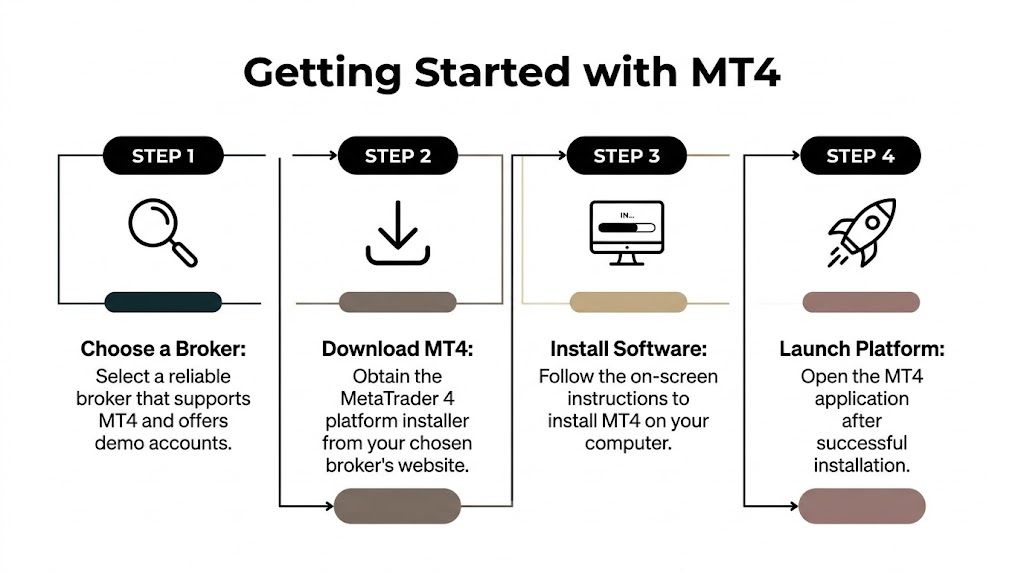
Installing MT4 on desktop
The desktop version is where most traders do serious chart work, backtesting, and EA setup.
Follow this order:
- Go to your chosen broker’s site and find the MT4 download page.
- Download the installer for Windows.
- Open the installer and allow it to complete.
- Launch MT4 once the installation finishes.
- Wait for the platform to load its default charts and server list.
A practical tip here: install MT4 somewhere you won’t forget, and create a clean folder structure if you plan to save templates, indicators, or EA files later.
Keep one install for manual trading practice and another clean install for EA testing if you expect to do both. It avoids confusion when templates and custom tools start piling up.
Installing MT4 on mobile
Mobile MT4 is useful for monitoring, simple execution, and checking open trades when you’re away from your desk. It’s less useful for serious chart analysis.
The process is simple:
- Open the App Store or Google Play
- Search for MetaTrader 4
- Install the app
- Open it and use the login details from your demo account provider
- Select the correct server when prompted
If you only use mobile, you can still learn order placement and watchlists. But if you’re preparing for a prop challenge, use desktop for the serious work. It’s easier to control risk, review trade history, and keep your workflow consistent.
A quick setup standard that works
Before you place a single demo trade, make sure you’ve answered these:
| Item | What to confirm |
|---|---|
| Markets | Does the demo include what you actually trade? |
| Sizing | Can you use micro lots if needed? |
| Pricing | Are spreads and commissions visible? |
| Device access | Can you log in on desktop and mobile? |
| Workflow | Will you trade manually, with EAs, or both? |
A broker can offer MT4 and still be a bad practice environment for your style. The right setup is the one that lets you rehearse your real trading process, not just click around.
Creating and Connecting Your First MT4 Demo Account
Once MT4 is installed, the next job is creating an account that matches how you want to practice. Many traders, however, make a small mistake that causes big bad habits later. They choose a huge virtual balance, high trading power, and random settings just because the platform allows it.
Don’t do that. Build a demo account that resembles the account you want to trade.
How to create the account inside MT4
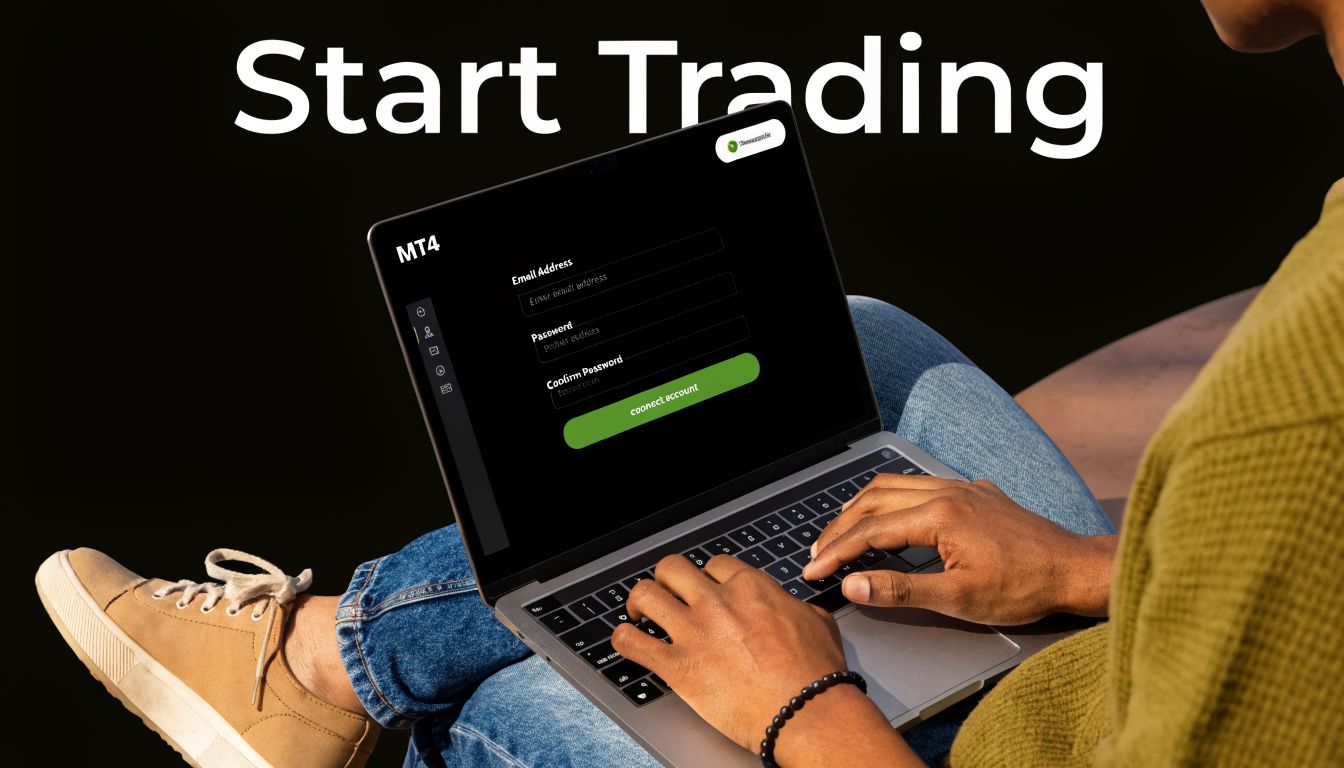
The process is usually straightforward inside the platform:
- Open MT4.
- Click File.
- Select Open an Account.
- Choose the broker’s demo server from the list.
- Fill in the registration form.
- Select your preferred account settings, including balance and gearing.
- Finish the setup and wait for MT4 to generate the login credentials.
Some brokers also let you start the demo from their website first, then send the credentials by email for use inside the terminal.
Choosing the right deposit and leverage
This part affects your training quality more than traders expect.
If you plan to trade a small personal account, don’t practice on a giant demo balance. If you want to prepare for a funded challenge with strict loss limits, choose an amount that lets your trade sizing and drawdown feel realistic.
A few practical rules help:
- Pick a virtual deposit that resembles your target account rather than the largest number available.
- Use trading power conservatively if you’re still learning. High trading power makes reckless sizing feel normal.
- Keep your setup simple at first. One account, one balance, one risk model.
Save your login, password, and server name immediately. If you lose any of them, reconnecting later becomes harder than it should be.
I always tell newer traders to take a screenshot of the account details and also store them in a password manager or secure note. MT4 logins are easy to ignore until you need them again on another device.
Connecting to the demo account
If the account doesn’t connect automatically, use the login menu manually:
- Click File
- Choose Login to Trade Account
- Enter the account number
- Enter the password
- Select the correct server
- Confirm the login
When the connection is working, the bottom-right corner of MT4 should show data activity rather than a dead connection status.
A realistic setup beats an impressive one
Some traders create a large demo account because it feels better to see bigger numbers. That’s useless for training. The point is to rehearse decisions under constraints.
Here’s a simple comparison:
| Setup choice | Better for training | Worse for training |
|---|---|---|
| Deposit size | Matches intended account | Inflated just to feel comfortable |
| Leverage | Supports controlled sizing | Encourages oversized positions |
| Instruments | Narrow list you actually trade | Random list with no routine |
| Goal | Process and risk discipline | Chasing virtual profit |
If your end goal is a prop challenge, the best demo account is the one that forces you to think in terms of limits, not fantasy growth.
Navigating the Platform and Customizing Your Workspace
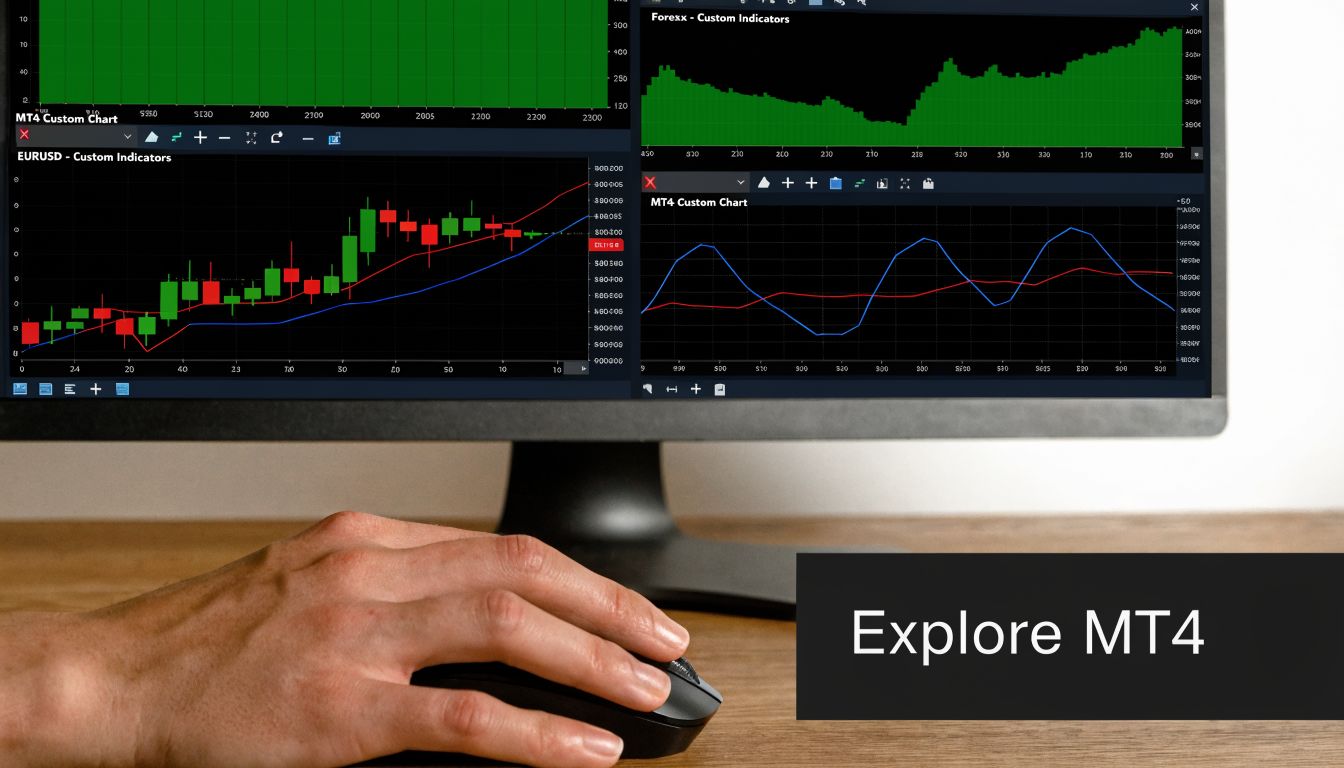
The first time MT4 opens, most traders stare at the screen for a minute and wonder what matters. The good news is you don’t need every window, every indicator, or every chart open at once. You only need a clean workspace that helps you read price and manage risk without clutter.
The four windows that matter most
Start with the parts of MT4 you’ll use every session.
Market Watch
This is your live instrument list. It shows symbols and bid/ask prices.
A practical move here is to remove the instruments you never trade. If you only focus on a few forex pairs, one index, and gold, keep only those visible. A shorter watchlist leads to cleaner decision-making.
Navigator
This panel is where MT4 stores your accounts, indicators, scripts, and Expert Advisors.
Use it to drag indicators onto charts or to attach an EA if you trade systematically. If you never organize this panel, it becomes messy fast.
Chart window
Actual reading occurs. Open one chart, set your timeframe, and strip out anything you don’t need.
For a new trader, a good starting chart is usually just price, maybe one or two indicators, and clearly marked levels. More tools rarely make the read better.
Terminal
The Terminal window shows open trades, account history, balance, equity, and other practical data. In this window, you monitor execution and review what happened after the trade closes.
If you’re training for funded trading, get used to checking this window after every session. It tells you whether your results came from a process you can repeat or from one oversized winner.
How to make MT4 easier to read
Most traders do better with a stripped-down layout.
Try this basic setup:
- Use one chart template for all your main markets
- Save preferred colors so candles are easy to read
- Add only core indicators you understand
- Arrange windows consistently so every trading session starts the same way
A clean workspace reduces impulsive trades. If every chart looks different, your decision-making usually becomes inconsistent too.
Placing your first test trade
The first order should be boring. That’s the point.
Open a chart for a market you know, then:
- Right-click the chart and choose Trading or press F9 to open the order window.
- Select the volume.
- Choose Market Execution if you want to enter immediately.
- Add a stop loss and take profit if your broker allows it in the order ticket.
- Click buy or sell.
After that, place a pending order just to understand the difference. A pending order sits in the market waiting for price to reach your chosen level. For breakout and pullback traders, that matters a lot.
The hidden limitation most guides skip
A demo account is useful, but it isn’t a perfect copy of live trading. Some of the most important differences are easy to miss because brokers often place them in small print.
IG notes that many demo accounts can expire if unused for as little as 7 days, and also states that demo trades are not subject to slippage, interest, dividend adjustments, or out-of-hours price movements, which can make strategy testing look cleaner than live execution really is in IG's MT4 demo account details.
That matters for anyone preparing for real money trading or a prop evaluation. If your test environment resets after inactivity, or if your fills are cleaner than what live execution would produce, your conclusions can be too optimistic.
A workspace habit worth keeping
Before every session, do three things:
- Check the account is still active
- Confirm the symbols in Market Watch are the ones you trade
- Open the Terminal and review the previous session before placing anything new
That routine sounds basic, but it keeps your mt4 demo account from becoming random screen time.
Advanced Demo Trading with EAs and Risk Management
An mt4 demo account becomes much more useful once you stop treating it as a sandbox and start treating it like a lab. That’s especially true if you use Expert Advisors or want to prepare for a prop challenge with fixed loss limits.
The two most practical advanced uses are EA backtesting and risk rule simulation. One tells you whether a strategy has structure. The other tells you whether you can survive long enough to prove it.
Using Strategy Tester properly
MT4 includes the Strategy Tester, which lets you backtest Expert Advisors on historical data. The basic workflow is simple and practical:
- Enable EAs in the platform settings.
- Load the EA into MT4.
- Open Strategy Tester with Ctrl+R.
- Choose the symbol, timeframe, and date range.
- Use the every tick model when you want the most precise test quality.
- Run the test and review the output.
According to ATFX's MT4 demo account guide, the key benchmarks to monitor are profit factor above 1.5, max drawdown below 20%, and Sharpe ratio above 1.0. Those numbers don’t guarantee live success, but they help filter out weak systems quickly.
What usually goes wrong with EAs
The biggest problem isn’t coding. It’s false confidence from bad testing.
A common trap is over-optimization. The same ATFX guide notes that it affects around 60% of backtests. In plain English, traders keep adjusting settings until the EA fits old data too neatly, then the strategy falls apart when market conditions change.
A better process looks like this:
- Test the idea on one data segment
- Hold back a separate set of data
- Run the EA on that unseen segment
- Compare whether the behavior stays stable
If the strategy only works on the exact period you tuned it for, it isn’t ready.
If automated trading is part of your plan, it also helps to review how a forex expert advisor fits into a broader trading workflow instead of treating the EA like a black box.
Benchmarks are filters, not promises. A decent profit factor and acceptable drawdown mean a strategy deserves more scrutiny. They do not mean it’s safe to deploy.
Simulating prop firm rules on demo
The relevance of demo training for funding develops.
If your target environment uses a 5% daily loss limit and 10% maximum drawdown, your demo should reflect those same boundaries. The point isn’t to see how much virtual money you can make. The point is to practice staying alive.
A simple way to do that is to create fixed rules for every session:
| Rule | How to use it in demo |
|---|---|
| Daily loss cap | Stop trading for the day once the limit is hit |
| Maximum drawdown | Track total account decline and reduce risk as needed |
| Per-trade risk | Keep position size stable and pre-defined |
| Session review | Record whether each trade followed plan or impulse |
You can do this manually in a journal, or with scripts and EAs that enforce limits by closing trades or blocking additional entries once thresholds are breached.
Why this works better than random demo trading
Random demo trading teaches you platform mechanics. Rule-based demo trading teaches you survival.
The same ATFX source states that strategies staying below a 5% daily drawdown have a much better chance of passing challenge-style conditions and scaling toward accounts up to $100K. That’s the number traders should focus on. Not how exciting the session felt. Not whether one lucky trade bailed out bad discipline.
A practical training routine
If you want your mt4 demo account to prepare you for a challenge, use a routine like this:
- Trade only the instruments you intend to trade later
- Fix your session times
- Predefine the amount you’ll risk per trade
- Stop after the daily loss threshold
- Review every breach of rules more seriously than every winning trade
That last part matters. Most traders learn too much from winners and too little from mistakes that almost blew the account.
Common MT4 Demo Errors and How to Fix Them
Most MT4 problems aren’t serious. They’re usually login errors, server issues, or a simple mismatch between the account and the platform settings. The key is not to start changing everything at once.
No connection in the bottom corner
If MT4 shows no connection, the platform isn’t receiving data from the server.
Try these fixes in order:
- Check your internet connection.
- Restart MT4.
- Confirm you selected the correct server for the demo account.
- Log out and log back in.
- Wait a few minutes in case the broker is doing maintenance.
If the charts are frozen and prices don’t update, it’s almost always a connection or server issue, not a chart issue.
Invalid account or login failed
This usually means one of three things. The account number is wrong, the password is wrong, or the server selection is wrong.
Do this:
- Re-enter the login details carefully
- Check uppercase and lowercase characters if the password is copied manually
- Confirm you’re logging into the demo server, not a live server
- Look for the original registration email or saved credentials
If you created multiple demo accounts, it’s easy to mix them up.
When login problems appear, check the server name first. Traders often assume the password is wrong when the real problem is the account is pointed at the wrong server.
Trade context is busy
This message appears when MT4 is already processing another trading request.
The usual fixes are simple:
- Wait a moment and try again
- Close and reopen the order window
- Restart the platform if the message keeps repeating
- Make sure an EA or script isn’t sending another command at the same time
This happens more often on cluttered setups where multiple tools are trying to act at once.
Orders won’t execute
If a demo order won’t go through, check the basics:
- Is the market open for that instrument?
- Is your lot size valid?
- Do you have enough virtual margin?
- Is one-click trading disabled when you expect it to be enabled?
Also check whether the account itself is still active. Some demo accounts stop working after inactivity, and that can look like an execution problem when it’s really an account status issue.
Charts or indicators look broken
Usually this is a template problem, a missing custom indicator, or a timeframe mismatch.
A quick reset often helps:
- Open a fresh chart
- Apply the default template
- Add indicators one by one
- Remove any custom tool that may be conflicting
When MT4 gets messy, clean beats clever. Reset the chart and rebuild only what you use.
FAQ and Transitioning from Demo to Live Trading
Moving from demo to live isn’t just about making money on virtual trades first. It’s about proving that your process survives pressure, spread differences, and rule enforcement.
That’s why many traders find the step from demo to a prop challenge more useful than jumping straight to a personal live account. It creates structure. You’re still judged on execution, but you’re judged inside a clear framework.
The transition only makes sense when your demo behavior is stable. Not perfect. Stable. You should know your setup, your risk per trade, your stop point for the day, and what conditions make you stay flat.
What changes when you leave demo
The biggest shift isn’t technical. It’s emotional and practical.
According to WeMasterTrade's MT4 demo account guide, 65% of traders fail to account for the spread difference between demo and live conditions, where demo may show 0.1 to 0.5 pips and live can be 1 to 3 pips on some products. The same guide notes that 90% of traders who are profitable in demo see profitability drop by 50% or more when they go live, largely because of psychology and live execution factors.
That’s exactly why challenge prep should include risk scripts or strict manual rules that mirror common prop limits like a 5% daily loss and 10% maximum drawdown.
FAQ
How long should I stay on an mt4 demo account?
Stay on demo until your process is consistent. That means you’re following the same setup rules, using controlled sizing, and reviewing mistakes thoroughly. If your results depend on random big wins or constant strategy changes, you’re not ready yet.
Can I use more than one MT4 demo account?
Yes, but keep the purpose clear. One account for manual execution practice and one for EA testing can make sense. Five different demo accounts with different rules usually creates noise.
Is a broker demo the same as a prop evaluation environment?
No. A broker demo is mainly a platform and market practice tool. A prop evaluation environment is built around rule compliance, drawdown control, and consistency under pressure.
Should I move from MT4 to MT5 instead?
That depends on your tools and execution style. MT4 still works well for many forex and CFD traders, especially those already using its indicators and EAs. If you need features beyond your current setup, compare the workflow before switching.
Trading involves risk of loss. The right next step isn’t the one that feels exciting. It’s the one that lets you prove you can trade with discipline.
If you’ve used an mt4 demo account to build a real process, the next logical step is to test that discipline in a structured environment. Explore MyFundedCapital to compare funding programs, review account types, and see whether a challenge or instant funding model fits your trading style.
